
ADVERTISEMENT
Your PC may have enough room for daily tasks but still lack space for a Windows update. Low disk space can also make saving files harder. Careful cleanup can help you free up Windows storage space without deleting needed items.
First, check your drive. In Windows 10 or Windows 11, open File Explorer and select This PC. Look under Devices and drives, then note the available space. Check again after each Windows storage cleanup step, and stop when you have enough room.
Key Takeaways
-
Check your available drive space before you begin.
-
Choose Windows storage cleanup steps that fit your needs.
-
Recheck the space after each step, then stop when you have enough.
See what is using space on your Windows drive
Open File Explorer from the taskbar and select This PC. Under Devices and drives, Windows shows the free space on each drive. This is a quick way to check available drive space before cleaning up.
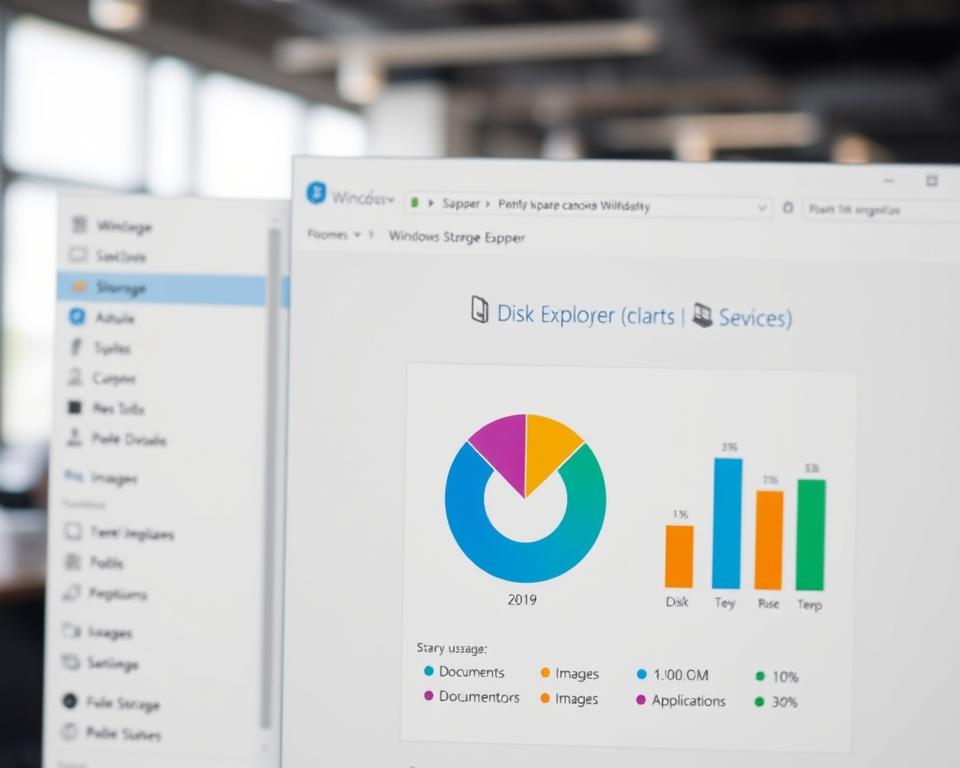
To find large files, open a folder and switch to Details view. Select Size to sort files, with the largest at the top. This helps spot large items, but it is not a full disk space analyzer for the entire drive.
ADVERTISEMENT
Checking a few folders gives you a clearer picture of Windows storage usage. It helps you choose what to review first.
Empty the Recycle Bin
Deleted files can still use space while they remain in the Recycle Bin. Open it, check that you need nothing inside, then select Empty Recycle Bin. This simple Recycle Bin cleanup can help free up Windows storage space.
Windows Storage Sense can clear Recycle Bin items during automatic cleanup. To remove deleted files right away, empty the bin yourself instead of waiting for Storage Sense.
Clear temporary files in Windows Settings
In Windows 11, open Start, select Settings, then go to System and Storage. Choose Windows Cleanup recommendations to see suggested files and the space each choice could free.
Review Temporary files, Large or unused files, Files synced to the cloud, and Unused apps. Select what you want to remove, then choose Clean up for each category. Check each item first so you keep files you may need.
For routine cleanup, adjust Storage Sense settings to remove unneeded temporary files and empty the Recycle Bin. Windows Cleanup recommendations let you review suggested files before removing them.
If a Low Disk Space alert returns, Microsoft Store app files may fill the Temp folder. Try the Windows Store Apps troubleshooter and run wsreset.exe to clear the Store cache. Run the Windows Update troubleshooter, then restart your PC. In Windows 10, use Disk Cleanup to remove temporary files.
| Windows tool or category | What to review |
|---|---|
| Temporary files | Unneeded files Windows identifies for removal |
| Large or unused files | Items that take up space and may no longer be needed |
| Files synced to the cloud | Local copies of files stored in a cloud service |
| Unused apps | Apps you rarely open and may choose to uninstall |
| Storage Sense | Automatic cleanup of temporary files and Recycle Bin contents |
Run Disk Cleanup for system files
On Windows 10, search the taskbar for Disk Cleanup utility. Choose a drive, select OK, and review the file types. The temporary Internet files, thumbnails, and downloaded program files may be selected by default; clear boxes for files you want to keep.
Select Clean up system files, choose a drive, and select OK. After the scan ends, choose what to remove, select OK, and confirm with Delete files.
If you upgraded Windows less than 10 days ago, the Windows.old folder may appear in the results. Removing it deletes the previous Windows version and ends your option to roll back. You cannot undo this step.
You can save space without deleting files by compressing your C: drive. In File Explorer, open This PC, right-click the drive, and choose Properties. On the General tab, select Compress this drive to save disk space; clear the same box to reverse the change.
| Cleanup choice | What to know |
|---|---|
| Temporary Internet files | Removes cached web content; some pages may load more slowly the next time you visit. |
| Windows.old folder | Can free space after an upgrade, but removing it prevents a return to the prior Windows version. |
| Drive compression | Saves space without deleting files and can be turned off in the drive’s Properties. |
Uninstall apps and games you no longer use
Old games and apps can use space long after you stop using them. Windows 11’s Cleanup recommendations help you find programs to remove. Open the Unused apps category and review the suggestions.
Select the apps or games you want to remove, then choose Clean up for that section. Windows shows how much space you can free before you continue. This unused apps cleanup helps you uninstall unused apps and manage Windows app storage carefully.
Delete large files from Downloads and other folders
Videos, music, and pictures can use much of your storage. To find large files, open a folder in File Explorer and choose Details view. Right-click inside the folder, choose Sort by, then select Size to sort files by size.
Review your Downloads folder and remove files you no longer need. This simple Downloads folder cleanup can free space quickly. Move files you want to keep to an external USB drive or SD card.
Deleted files stay in the Recycle Bin until you empty it. Empty the bin to remove those files from your PC and reclaim storage space.
Clear cached files from your web browsers
Web browsers save cached files so pages load faster. A browser cache cleanup can free storage, but sites may load more slowly next time. Review each browser’s settings before you begin.
Windows also offers the Disk Cleanup utility. Its list may include Temporary Internet Files, which Windows selects by default. Review the categories before deleting files, and clear the check box to keep those files.
| Cleanup option | What to check | What to expect |
|---|---|---|
| Browser settings | Review the cache option in your browser’s settings. | Cached pages may load more slowly the next time you visit. |
| Disk Cleanup utility | Review the listed categories before confirming deletion. | Temporary Internet Files may be selected by default; clear its check box to keep them. |
Move photos, videos, and documents off your PC
Photos, videos, music, and documents can quickly fill a Windows drive. In File Explorer, check your Pictures, Videos, Music, and Downloads folders for files you want to keep but rarely open.
To move files to external storage, connect a USB drive or SD card. In Windows 11, select the files, choose Cut, open the external drive, and choose Paste. In Windows 10, select the files, open the Home tab, choose Move to, and pick the drive.
The files stay on the external drive and use no space on your PC while stored there. This helps free up Windows storage space. The drive must be connected to access them, so keep it somewhere safe.
You can save files to another drive by changing where Windows stores new content. In Windows 11, go to Settings, System, Storage, Advanced storage settings, and Where new content is saved. In Windows 10, open Settings, System, Storage, and Change where new content is saved.
Connect the drive first so it appears in the list.
Make OneDrive files online-only
OneDrive Files On-Demand frees space on your Windows drive. It stores a small placeholder on your PC, while the full file stays in cloud storage. You can still see the file in File Explorer and download it when needed.
Set files you rarely use as online-only OneDrive files to avoid storing full copies on your PC. This helps when photos, videos, or documents take up too much room.
Remove old Windows restore points carefully
System restore points and the Windows.old folder meet different recovery needs. After an upgrade, Windows may list the previous Windows version under Temporary files if fewer than 10 days have passed.
Deleting the Windows.old folder removes your option to return to the previous Windows version, and you cannot undo that choice. Check that your files and apps work as expected before removing it. Treat system restore points as a separate safeguard. Avoid deleting them unless needed.
Turn on Storage Sense for automatic cleanup
Storage Sense frees drive space by removing items Windows no longer needs. It can remove temporary files and Recycle Bin items, supporting automatic cleanup without manual work.
To review the Storage Sense settings, open Settings, select System, choose Storage, and open Storage Sense. In Windows 11, Cleanup recommendations show which file types may be removed and how much space each category could save.
Keep your Windows drive from filling up again
Check your free space regularly, and leave room for apps and system files. Keep Storage Sense on to remove temporary files and help prevent low disk space.
If another drive has more room, set Windows to save new files to another drive. Change this setting in Settings under System and Storage.
Windows updates may need extra space to install. If your PC runs short, connect an external drive and follow the update prompts. Low space can also slow your PC or block updates.
If cleanup does not fix update problems, Microsoft says resetting or reinstalling Windows may help. If you suspect malware, run a scan with Windows Security and remove any threats it finds.




