
ADVERTISEMENT
Your inbox can sort new email before you read any messages. Gmail, Outlook, and other email services use filters and rules to move messages, add labels, or flag items for review.
To organize email inbox with filters, make a simple plan: delete unwanted mail, archive useful messages, and mark emails needing action. Automatic email sorting, plus focused email sessions, makes inbox organization easier to maintain.
Key Takeaways
- Filters can sort new messages as they arrive.
- Delete unwanted email and archive messages worth keeping.
- Use labels or folders to group related messages.
- Mark emails that need a response or follow-up.
- Set aside short, regular times to manage your inbox.
Clear the backlog before you build new filters
A quick inbox cleanup gives you a fresh start. In Gmail, search for older_than:30d, select the results, and click Archive. In Outlook, sort messages by date, select older mail, and move it to the Archive folder.
Archived messages stay searchable, so you can find them later. Deleted messages may disappear after you clear the trash. In Gmail, search for a frequent sender, select matching messages in bulk, and archive them instead of deleting them.
Choose a routine that fits your schedule. A daily review, weekly cleanup, or monthly bulk archive can keep new mail from piling up. This steady inbox zero workflow helps you archive old emails before the task grows.
ADVERTISEMENT

| Routine | What to do | Best for |
|---|---|---|
| Daily review | Archive older messages you no longer need in the inbox. | Keeping up with a steady stream of new mail. |
| Weekly cleanup | Sort by date or sender, select routine messages, and archive them in batches. | Clearing a manageable backlog once a week. |
| Monthly archive | Search for messages older than 30 days and move them to Archive. | A one-time reset or a larger backlog. |
Pick a few inbox categories that match your daily email
Start with message types you receive most often. Useful email categories include work, personal, travel, newsletters, receipts, and company updates. Group email by topic, project, client, or urgency to find what needs attention.
Keep the list to five to seven categories. Too many can make inbox cleanup another chore. A simple label hierarchy can divide broad groups, such as work and personal, from smaller topics, such as projects or travel.
Use a priority inbox or label for urgent messages. Keep routine mail in a separate group. This gives important work a clear place without sending every new message to the top.
Decide where each category should go
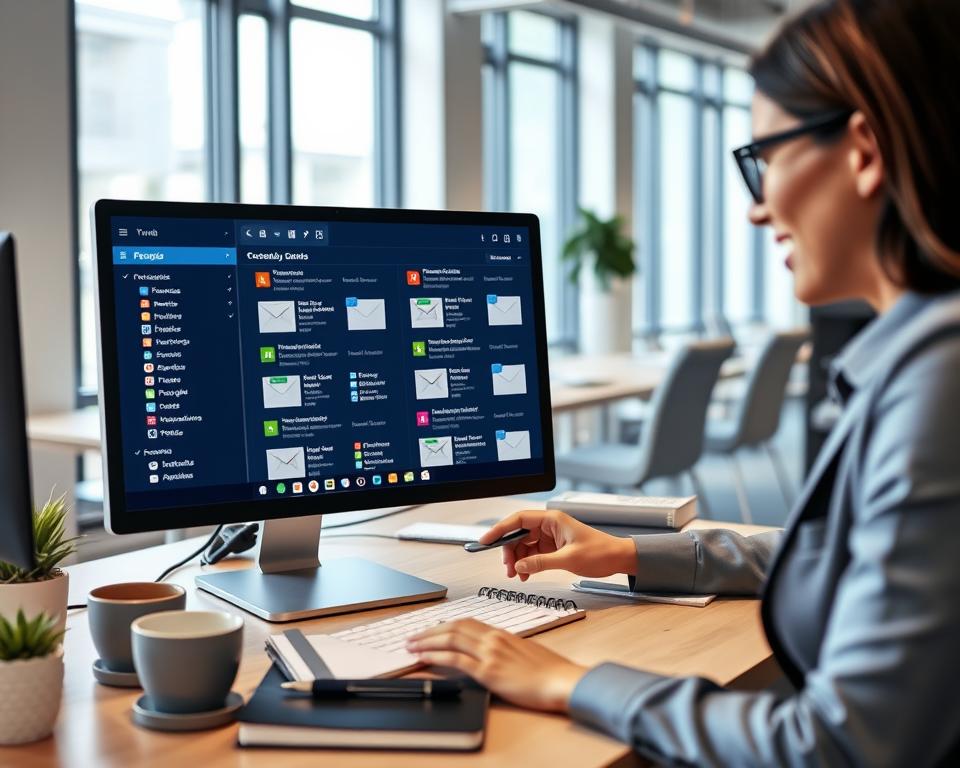
Give each inbox category a clear destination. In Gmail, filters can apply labels, while Outlook rules can move project updates into email folders. A simple label hierarchy helps you find messages by topic without adding too many layers.
For sign-ups, use a plus sign in your Gmail address, such as [email protected]. You can filter messages sent to that address and send them to a label. Keep work and personal mail in separate accounts, or route each type to its own folder to reduce overlap.
Automatic email sorting can clear routine messages from your inbox without deleting them. Archived messages remain available through search, so you can find them when needed.
Choose filter rules based on repeatable email patterns
Good filters focus on patterns that appear often. They can move messages into folders, mark them important, or flag them for review. Clear email filter criteria keep useful mail easy to find.
Filter by sender and mailing list
Use sender-based rules for messages from your boss, key clients, or family. A Gmail plus-address can sort sign-ups, while the word “unsubscribe” can identify newsletters.
Filter by subject line and keywords
Look for phrases that repeat in messages. Subjects such as “receipt” or “order confirmation” can point to purchases. “Announcement” may mark company updates.
Filter by attachments and recipient
Recipient details can separate work mail from messages sent to a personal address. Attachment rules may route files for review. Use common patterns to make automatic email sorting more reliable.
Create your first filter in Gmail
Open Gmail and search for a sender whose messages you want to sort. Use search options to add details, such as a subject or words in the message. Select Create filter to choose what Gmail does with matching mail.
To organize email inbox with filters, skip the inbox and apply a label, such as “Promotions.” For messages already in your inbox, search for the sender and select matching messages using the checkbox above the results. Choose Archive to remove them from the inbox without deleting them.
Use Report Spam for unwanted or deceptive messages, not routine offers. For new sign-ups, a plus-address such as [email protected] can help you spot gym mail and sort it with Gmail filters. Try filter testing with a few messages first, and check that useful mail still lands where you expect.
| Gmail action | What it does | Best for |
|---|---|---|
| Apply a label | Groups matching mail under a label | Promotions you may want to read later |
| Skip the inbox | Keeps matching mail out of the main inbox | Routine messages you can check on your schedule |
| Archive | Removes selected messages from the inbox without deleting them | Older messages that no longer need inbox space |
| Report Spam | Reports a message as unwanted | Spam or deceptive email |
Create an inbox rule in Outlook
In Outlook, open Settings, choose Mail, and select Rules. Create a rule for a project sender or specific subject, then move matching messages into a folder.
These Outlook rules sort new messages as they arrive. This automatic email sorting keeps project updates easy to find and prevents inbox clutter.
Name the folder clearly, such as “Project Updates,” and test the rule with a recent message. Folder rules work best when they match a common pattern without catching messages needing your immediate attention.
To move older mail, sort your inbox by date and select messages before your chosen cutoff. Move them to the Archive folder to clear past messages without changing new mail.
| Outlook task | What to do | What it helps with |
|---|---|---|
| Sort new project updates | Set a sender or subject condition and move matching mail to a folder | Keeps new updates together as they arrive |
| Check a rule | Review its conditions and action with a recent message | Helps prevent useful mail from going to the wrong place |
| Archive older mail | Sort by date, select messages before a chosen date, and move them to Archive | Clears older messages while leaving new mail in place |
Send newsletters and promotions out of your main inbox
If you have not opened a newsletter in 30 days, unsubscribe. Tools such as Unroll.Me can support unsubscribe management, while Clean Email groups messages by category. A few newsletter filters can send wanted mail to a separate folder or address.
Clean Email’s 2026 Industry Report says only 12% of incoming email has action items, while spam makes up 42% to 49%. A newsletter digest gathers updates in one place, and AI summaries may cut reading time by 70% to 80%.
According to Google, Gmail’s spam filtering blocks more than 99.9% of spam, phishing, and malware. Report messages that get through to help keep your inbox cleaner.
Sort bills, receipts, and order updates automatically
Keep purchase records in one place with a folder for receipts and order updates. In Gmail or Outlook, receipt filters can catch messages from stores and payment services as they arrive. Order confirmation rules can move shipping notices and purchase receipts from your main inbox, leaving room for messages needing attention.
Use automatic email sorting for predictable messages, but check your rules before applying them to old mail. Bulk actions can group existing receipts so you can archive, delete, or keep them. A quick review helps prevent bills or return details from getting lost.
Keep work and personal email from competing for attention
Keep work and personal email in separate accounts, or use filters to route each type into its own folder. This inbox separation helps you focus and reduces the chance of missing work messages among personal threads.
Use your main address for personal and professional messages. Give newsletters, shopping accounts, and subscriptions a separate address. Then review or archive them in batches without affecting your main inbox.
Gmail users can try plus-addresses, such as an address with “+gym” before the at sign, to sort sign-ups. Set a priority inbox for messages that need quick attention, and check the subscription inbox on your own schedule.
Choose the right actions for each filtered message
A filter does more than sort mail. It can archive, label, move, or flag messages. Choose each action based on what you need to see later.
Archive routine messages
Archive messages you may need, but keep them out of your inbox. They stay searchable.
Delete mail you no longer need; it is gone for good once removed from Trash. When you open a message, decide whether to reply, archive or delete email, delegate it, or defer it.
Apply labels or folders
Use labels or folders to group mail by project, client, or topic. A clear label hierarchy makes messages easier to find. Filters can apply labels or move mail into a folder as it arrives.
Mark, star, or flag messages that need follow-up
Mark key messages as important, or use stars and follow-up flags for tasks that need a response. Set a due date or reminder when a message cannot wait, so it does not vanish from view.
| Message type | Useful action | Why it helps |
|---|---|---|
| Routine update | Archive | Keeps it searchable without crowding the inbox |
| Project or client email | Apply a label or move to a folder | Groups related messages for quick review |
| Time-sensitive request | Star, mark important, or flag | Keeps the next step visible |
Protect important messages with exceptions and priority rules
Keep messages from your boss, key clients, or family easy to spot. Use sender-based rules to star or flag these emails, and add exceptions so routine mail never archives them. A priority inbox keeps these messages near the top for quick review.
Send predictable, non-urgent mail, such as newsletters, to a separate folder. Spam filtering catches many harmful messages, and Google says Gmail blocks more than 99.9% of spam, phishing, and malware. Report any unwanted message that slips through.
Protect the account behind your filters, too. Run Google Security Checkup and Privacy Checkup. Use a strong password, turn on two-factor authentication, and add recovery details.
| Message type | Suggested action | Why it helps |
|---|---|---|
| Key contacts | Star or flag; exclude from archiving | Keeps urgent messages visible |
| Newsletters | Move to a separate folder | Reduces routine inbox clutter |
| Spam that gets through | Report it in Gmail | Helps improve spam filtering |
Test and refine filters before trusting them
Run filter testing for one week before using a rule that marks messages as read. Check each message’s location, and watch for important messages moved by mistake.
Keep your setup simple: five to seven categories usually work well. Use care with sender-based rules, and keep time-sensitive client emails in your main inbox.
Gmail and Outlook include built-in filters and rules. Perform an email rule review each quarter to find outdated settings. Even with working rules, a large backlog may need bulk cleanup.
Keep your filters useful with a quick monthly cleanup
Good filters need care. Set aside 15 minutes each week to review missed messages, spot newsletters, and remove old rules. This simple filter maintenance keeps your inbox from filling up again.
Use a monthly session to archive old threads and clear promotions in bulk. Review your unsubscribe management, too, so unwanted mail does not keep returning. A quick daily check can catch anything urgent between cleanups.
Set regular times to check email: morning, after lunch, and before work ends. Turn off alerts you do not need, and decide what to do when you open each message. These small habits support an inbox zero workflow and help prevent a new backlog.




