
ADVERTISEMENT
Your laptop can lose power even when you are not using it. A bright screen, active apps, and wireless connections may use energy in the background. Simple changes can help you reduce laptop battery drain and spend more time away from an outlet.
Settings are only part of the picture. Heat and frequent deep discharges can affect battery health over time. Start with easy fixes, then check whether the battery itself needs attention.
Key Takeaways
- Adjust a few everyday settings to help your laptop last longer between charges.
- Screen use, background apps, and wireless connections can affect battery life.
- Heat and deep discharges may affect battery health over time.
- Small changes can make a noticeable difference in daily use.
- Check battery condition if settings do not solve the problem.
Check which apps and settings are draining your battery
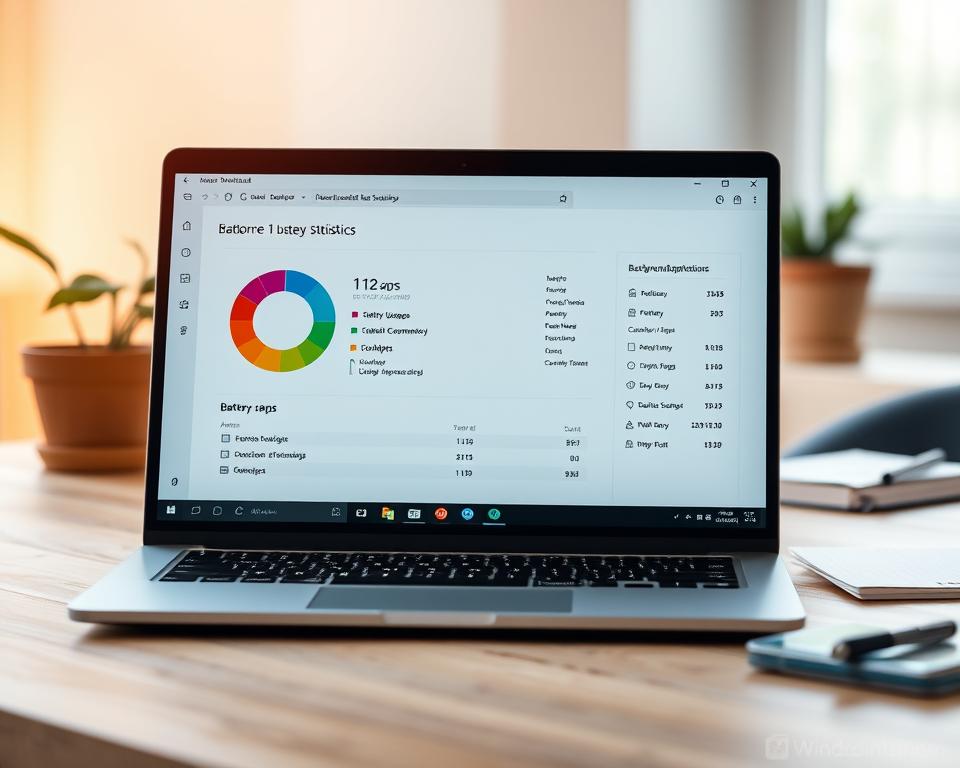
In Windows 11, open Settings, choose System, then Power & battery. Select Battery usage to see which apps use the most power. This view can show activity from background apps, your battery level, and changes throughout the day.
For a listed app, select More options, then Manage background activity, if available. Limit apps that do not need to run when you are not using them. This can reduce battery drain without changing settings you rely on.
ADVERTISEMENT
Battery usage does not show a battery cycle count or a universal threshold for battery wear. Use this screen to find power-hungry apps, then check your laptop maker’s tools for battery health details.
Turn down the display’s biggest power demands
Your display can use much of your laptop’s power. Small changes to screen brightness and display settings can help reduce laptop battery drain during daily tasks.

Lower brightness and refresh rate on battery
In Windows 11, open Settings, choose System, then Display, and lower Brightness. Cutting brightness by 50% can add up to three hours on some laptops, but results vary. Set the screen to turn off sooner under Settings, System, Power & battery, then Screen and sleep.
A high refresh rate can use more power than a lower rate. Go to Settings, System, Display, then Advanced display to change it. Choose a lower rate on battery if the screen still feels smooth enough for work.
Turn off HDR and keyboard lighting when you do not need them
HDR can make images look vivid, but standard viewing may not need it. Turn HDR off during basic tasks. Dim or switch off keyboard lighting in low-light settings when you can still type comfortably.
| Setting | Where to adjust it | Battery-friendly choice |
|---|---|---|
| Screen brightness | Settings > System > Display | Lower it to a comfortable level |
| Screen timeout | Settings > System > Power & battery > Screen and sleep | Choose a shorter on-battery time |
| Refresh rate | Settings > System > Display > Advanced display | Use a lower rate when practical |
| HDR and keyboard lighting | Display and keyboard settings | Turn them off or dim them when not needed |
Make battery saver and sleep kick in sooner
Automatic power controls can extend battery life with little effort. Set a power-saving mode to start before the charge falls too low. Adjust sleep settings so your laptop rests sooner when you step away.
Set battery saver to turn on automatically in Windows 11
Open Settings, choose System, then Power & battery. Expand Energy saver and choose the battery level that turns it on.
You can also activate it in Settings or through the battery icon on the taskbar. Energy saver reduces power use by limiting some system activity.
Set the screen to turn off and the laptop to sleep sooner on battery power. These shorter sleep settings prevent wasted power while the laptop sits unused.
Use Low Power Mode and shorter sleep times in macOS
On a Mac, open System Settings, select Battery, and choose Low Power Mode for battery use. For shorter screen-off times, open Lock Screen and adjust the display timer when the Mac uses battery power. These changes let the power-saving mode work with sensible sleep settings.
Stop apps from running when you are not using them
Some apps launch when you sign in or keep working after you close their windows. Trim these background apps to reduce battery use when your laptop is unplugged.
Remove unnecessary startup apps
Review the startup list in your system settings. Turn off apps you rarely use, such as game launchers or meeting tools. Keep security software and tools you rely on at startup.
Limit background activity and automatic syncing
In Windows, check Battery usage to spot apps that use power in the background. For supported apps, open Manage background activity and restrict activity you do not need. Battery saver can limit some background tasks, including automatic email and calendar syncing.
Close unused apps and browser tabs when you are done. These steps address software drain; lithium-ion battery calibration is a separate process and does not stop apps from running.
Choose an efficient power mode instead of maximum performance
Maximum performance can use more battery than everyday tasks need. In Windows 11, open Settings, select System, then Power & battery. Choose an efficient option under Power mode to use a power-saving mode.
Some PCs offer a power slider from the battery icon. Move it toward Best battery life if available. These settings depend on your PC’s hardware and manufacturer. Your battery cycle count does not set a target power mode, so choose what fits your work.
Make web browsing and video less demanding
Browsers and video apps can use more power when many tasks run at once. A few small changes can reduce laptop battery drain without making everyday use harder.
Close unused tabs and remove power-hungry extensions
Close tabs you no longer need, and remove browser extensions you rarely use. On Windows 10, tests found longer battery life with Microsoft Edge.
Browsing lasted 36% to 53% longer per charge than with Chrome, Firefox, or Opera.
Disable autoplay and lower video quality when needed
Turn off autoplay in your browser or streaming app. This stops videos from playing when you do not want them. Lower video quality when you do not need a sharp picture.
In Windows, go to Settings, Apps, and Video playback, then choose Optimize for battery life. Lower screen brightness can also save power while you watch.
Turn off connections and accessories you do not need
Turn on Airplane mode when you do not need internet or Bluetooth. Wi-Fi and Bluetooth use power while searching for nearby connections. This step can help reduce laptop battery drain.
Unplug USB drives, external hard drives, webcams, and other accessories when you finish using them. A USB-C charging hub can power connected devices. Disconnect it when you do not need the hub or its accessories.
Check whether battery health—not settings—is the real problem
Lithium-ion batteries lose capacity as they age. If your laptop drains quickly, shuts down, or cannot hold a charge, the battery may need service or replacement. Check the battery health report or built-in diagnostics for more clues.
Lithium-ion battery calibration may make the charge reading match the battery’s actual level, but it cannot restore lost capacity. Heat can speed wear, so keep vents clear and use your laptop on a hard, flat surface. Avoid leaving it in a parked car; extreme cold can reduce capacity and disrupt power.
| Sign or condition | What it may mean | What to do |
|---|---|---|
| Fast drain or trouble holding a charge | Reduced battery capacity | Check battery diagnostics and consider service |
| Unexpected shutdowns | The battery may not deliver steady power | Save work often and arrange a battery check |
| Blocked vents or hot surroundings | Heat may speed battery wear | Clear vents and use the laptop on a firm surface |
| Extreme cold | Capacity and power delivery may drop | Let the laptop return to room temperature before use |
Build a quick low-drain routine for everyday laptop use
Before unplugging, lower the screen brightness and close unused apps. Turn on battery saver, shorten your sleep settings, and disable Wi-Fi or Bluetooth when unnecessary.
Keep the laptop on a hard, flat surface to keep its vents clear. If battery life suddenly drops, restart the computer and check which apps use the most power. For USB-C charging, use a charger that meets your laptop’s power needs.
For long-term care, avoid frequent deep discharges and long periods at full charge when practical. Battery cycle count can show wear, but good charging habits cannot guarantee a set cycle number or lifespan.




