
ADVERTISEMENT
Microsoft reports that multifactor authentication can block more than 99.9% of account compromise attacks. It adds a second check after your password, making sign-ins harder for someone else.
Two-step verification is a simple way to strengthen account security. Learn how to protect accounts with two factor authentication without making daily sign-ins a hassle.
Key Takeaways
- 2FA adds a check beyond your password.
- Start with your email and other important accounts.
- Choose a second-step method that works for you.
- Save backup codes in a safe place.
- Test sign-in and recovery before you need them.
Secure your email and other high-value accounts first
Your email account can unlock many other services. Protect it first, then secure banking, cloud storage, and work accounts with sensitive data. Two-factor authentication adds a second login check and can limit damage when someone exposes your password.
Reusing passwords puts several accounts at risk. Microsoft recommends a different password for each service. Unique passwords and two-factor authentication can help block credential stuffing attacks and support account takeover prevention.
ADVERTISEMENT

| Account type | Why it matters | First step |
|---|---|---|
| Can reset passwords for other services | Turn on two-factor authentication | |
| Banking | May expose money and payment details | Secure sign-in and recovery options |
| Cloud storage | May hold private files and photos | Protect access with a second check |
Prioritizing these accounts creates a strong base for high-value account security. This matters even more when you use remote access or personal devices for work.
Choose the easiest second-step method for each account
Pick a method you can use daily, with stronger protection for important accounts. Microsoft can send codes by email, phone, or an authenticator app.
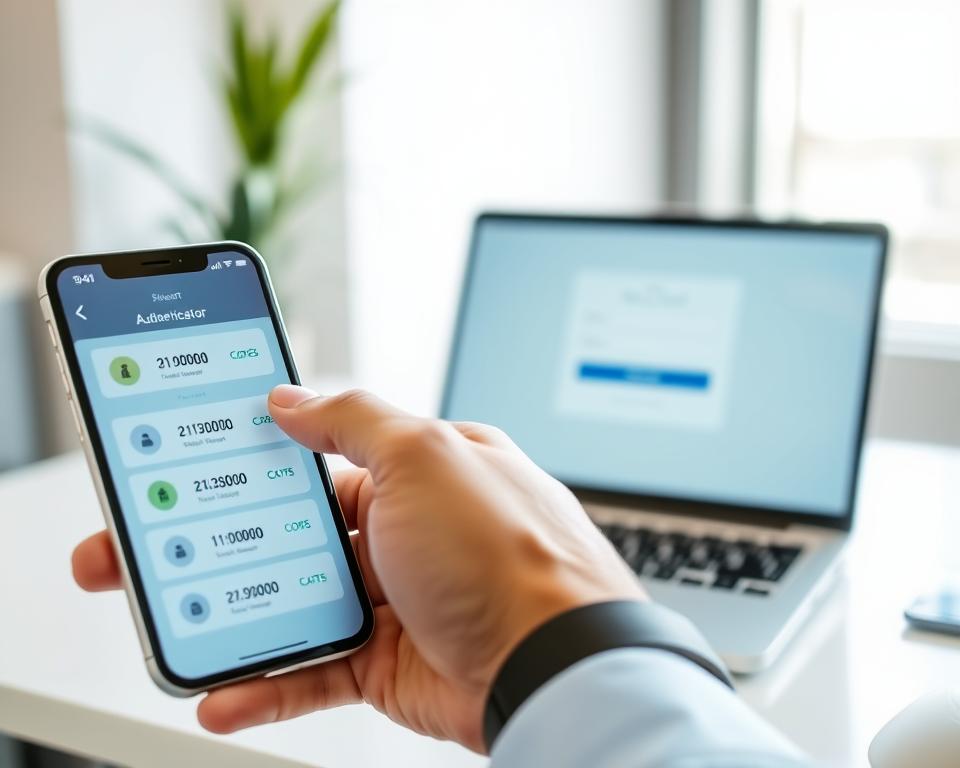
Authenticator apps for fast, reliable login codes
Apps such as Microsoft Authenticator create authenticator app codes on your phone. During setup, scan a QR code to confirm you have the device. These codes work without text messages when cell service is weak.
Security keys for stronger protection
Hardware security keys plug into a device or connect wirelessly. WebAuthn keys can support a phishing-resistant login by checking that you are on the real sign-in site.
Some accounts let you use a fingerprint or face scan to unlock a device or passkey. No security tool is risk-free; RSA’s SecurID system suffered a breach in 2011.
Text messages when other options are unavailable
Text codes are simple, but attackers may steal a number through a SIM swap or exploit malware. NIST has discouraged SMS for two-factor authentication, and Microsoft says it is phasing out SMS for personal account sign-in and recovery. Use texts when they are your only option, then switch to an app or key when possible.
Turn on two-factor authentication in your account settings
To improve Microsoft account security, sign in at account.microsoft.com/security. Select Manage how I sign in, then choose Turn on under Additional security and Two-step verification.
Follow the on-screen steps to complete your two-step verification setup. This extra identity verification helps protect your account if someone learns your password.
On an untrusted device, Microsoft may ask for a security code sent to your email, phone, or authenticator app. To disable this feature, return to the same settings and select Turn off.
Save backup codes before you need them
Some services provide backup recovery codes for emergencies. Save them in a secure place, such as a trusted password manager, away from your phone. Use each code only as the service directs.
Microsoft uses security information to help you access your account. It recommends adding three ways to verify your identity, such as an email address, phone number, or authenticator app. If you forget your password, you may need two contact methods to regain access.
Review your account recovery options while you can still sign in, and keep your phone number and other details updated. Microsoft recommends using two different email addresses: one for daily use and one as a backup. A password alone may not restore access if you lose a contact method.
Test the new login process while you still have access
Before relying on two-step verification, check that your backup email, phone number, and authenticator app work. This step supports account takeover prevention and can save time when you need to recover access.
Try signing in on a device you rarely use. Microsoft may ask for a security code when it detects a new device or location. With two-step verification enabled, new-device verification requires a code on each untrusted device.
During sign-in testing, confirm that you can receive the code and open your authenticator app. Microsoft’s password reset process may ask for two security codes, based on your account’s security details. Check each contact method before you need it.
Make everyday two-factor sign-ins less annoying
Use trusted devices for routine sign-ins when your account offers that option. You’ll need a code less often, while unfamiliar devices may still prompt an extra check.
A clear multifactor authentication policy can focus extra checks on email, work systems, and other key accounts. Review it as your needs change, and choose convenient authentication without lowering protection where it matters.
Some older apps, including certain mail apps and Xbox 360, may need an app password instead of a security code. Microsoft accounts may offer passwordless sign-in, too. Remember, Microsoft may ask for a security code if it detects risk, even when two-step verification is turned off.
Recover your account if you lose your phone or security key
If your phone or security key goes missing, start account recovery with a backup option. Microsoft may ask for a code from your authenticator app and one sent to a backup email address. Keep backup recovery codes somewhere safe and reachable without your phone.
Microsoft recommends keeping three pieces of security information on your account. Add alternate contact methods, such as another email address or phone number, and update them when they change. A password may not be enough after you lose access to your security information.
Recovery can take 30 days, and you may lose access if you cannot verify your identity.
| Recovery option | What to do |
|---|---|
| Backup recovery codes | Store them somewhere secure and separate from your phone. |
| Alternate contact methods | Keep a current phone number and email address on your account. |
| Lost security information | Follow Microsoft’s steps to replace or update it, and be ready for a possible 30-day wait. |
Ignore phishing messages that ask for your verification code
An unexpected sign-in code may mean someone is trying to access your account. Never reply or share the code, even when the request looks real. For verification code safety, check your account through its official app or website.
Two-factor authentication makes unauthorized access harder, but every method has limits. SMS codes may be exposed through phone-number theft or malware. A phishing-resistant login method, such as a security key, offers stronger protection. Good authentication security starts by treating every surprise code request with care.
| What happens | Safer response |
|---|---|
| You receive a code you did not request | Do not share it; open the service’s official app or website to check your account. |
| A message asks you to send a sign-in code | Ignore the request. Legitimate support staff should not need your code. |
| You suspect someone tried to sign in | Change your password through the official service and review recent account activity. |
Keep two-factor authentication working with a quick security check
Every few months, check your trusted devices, recovery options, and backup codes. An account security review can find old phone numbers or unused devices. Watch login alerts and act on any sign-in you do not recognize.
Microsoft may ask for a security code when it spots a possible risk. If signing in becomes difficult, its sign-in helper can guide you through common account problems.
Keep your recovery details current, and confirm you can still use your chosen second step. This simple authentication maintenance helps protect personal accounts and supports data protection at work. Organizations should also plan for outages affecting outside authentication services.




