
ADVERTISEMENT
Your iPhone may already include a built-in way to find duplicate photos, so no cleaner app is needed. Apple Photos places matches in the Duplicates collection. You can merge them and make room for new shots.
To remove duplicate photos iPhone users can start with this simple tool. Then review similar-looking images it may miss. A quick cleanup can help you organize camera roll clutter without losing the best version of a photo.
Key Takeaways
- Apple Photos can detect duplicate photos and videos.
- Merging a group keeps one version in your library.
- Review similar shots and large videos for extra storage gains.
Find the Duplicates album in Apple Photos
Apple Photos can find matching photos and videos in your library. On an iPhone with iOS 16 or later, open Photos, tap Collections, then Utilities, and choose Duplicates.

See whether iOS detected duplicate photos
The iOS Duplicates album groups items that Photos marked as duplicates. Review each item before taking action. This helps if you want to remove duplicate photos iPhone storage no longer needs.
ADVERTISEMENT
Fix a missing or empty Duplicates album
If Duplicates does not appear, your library may have no duplicate photos or videos. Photos shows this collection only when it finds matches. Therefore, a missing album does not mean the app is broken.
| What you see | What it means |
|---|---|
| Duplicates under Utilities | Photos found items it marked as duplicates. |
| No Duplicates collection | Photos has not found duplicate photos or videos in the library. |
| An empty Duplicates view | There are no detected groups to review at that time. |
Check iCloud Photos and back up before cleanup
When iCloud Photos is on, deleting a picture from your iPhone also removes it from iCloud. It also removes the picture from other devices using the same library. Before cleanup, make a separate copy of photos you want to keep.
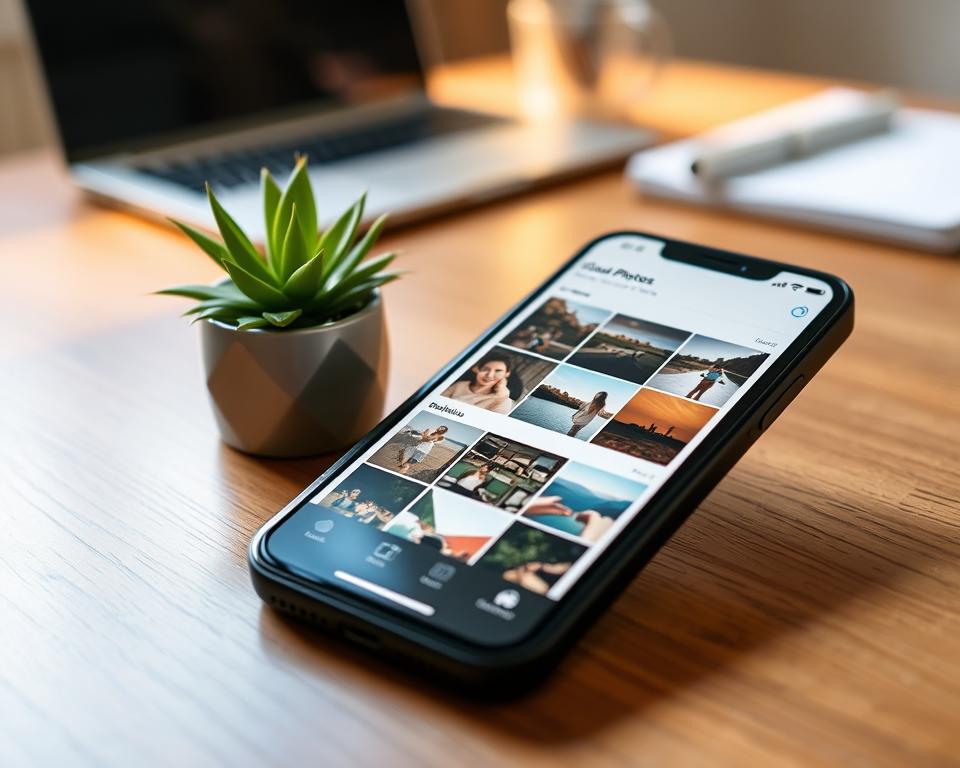
To free up iCloud storage, review each group before merging or deleting photos. When two images look alike, compare photo metadata, such as the date and file size, with the pictures. Also compare the pictures themselves.
Cleanup apps differ in accuracy and the control they offer. Review their choices closely. Keep a backup of important images before making changes.
Merge duplicate photos on your iPhone
Apple Photos can merge identical images and videos in the iOS Duplicates album. It keeps one version in your library and removes extra copies.
Merge one duplicate group
Open Photos, tap Collections, and choose Utilities. Tap Duplicates to see groups that Photos found. Review a group, tap Merge, then confirm with Merge [number] Items.
Merge multiple groups at once
To clear several groups, tap Select in Duplicates. Choose the groups to combine, tap Merge, and confirm the item count. Review each group first to keep the versions you want.
| Task | What to do | What happens |
|---|---|---|
| Merge one group | Tap Merge on a duplicate set and confirm. | Photos combines the selected copies into one library item. |
| Merge several groups | Tap Select, choose groups, and confirm Merge. | Photos processes the chosen groups together. |
See what the Merge button keeps and deletes
In Apple Photos, Merge combines duplicate photos into one entry. Apple does not explain which copy it keeps or what happens to each removed copy. Check the group before you tap Merge.
Some photo-cleanup apps choose a preferred version for you. This feature belongs to those apps, not Apple Photos. Review images yourself when edits, crops, or quality matter.
| What to check | What Apple Photos states |
|---|---|
| Grouped duplicates | Merge combines a set of duplicates. |
| Which copy remains | Apple does not specify how Photos chooses the retained item. |
| Removed copies | Apple does not specify what happens to each copy after merging. |
Knowing what Apple documents helps you merge identical images with care. A quick review helps you organize camera roll photos without guessing which version will remain.
Remove duplicates the automatic tool missed
Apple Photos finds exact matches, but your library may still contain near-identical shots. Check them by eye before you remove duplicate photos iPhone users may want to keep.
Compare visually similar photos
Look for small changes in expression, focus, or timing. Some cleanup apps group similar images, but their results can vary. Review each group yourself because an app may miss matches or group unrelated photos.
Review edited or cropped copies
Open each image and compare its crop, color, and detail. You can compare photo metadata, such as capture time and image dimensions, for extra clues. Keep the version with your preferred framing or edits before removing the other copy.
Clear duplicate screenshots, videos, and downloaded images
Screenshots, clips, and saved pictures can crowd your library. A quick review helps you organize camera roll content and find files worth removing.
Filter screenshots and screen recordings
Open the Screenshots album in Photos, and delete captures you no longer need. Browse your videos for screen recordings, then check clips you recognize or no longer use.
Photos can find duplicate video files and duplicate photos. Some cleaner apps sort items into groups such as Videos, Screenshots, and Live Photos. Clever Cleaner shows each group’s storage use, helping you choose what to review first.
Review saved images from Messages and Safari
Photos does not label whether an image came from Messages or Safari. Review recent pictures and screenshots, and keep only copies you still want. Compare similar images side by side before deleting anything important.
Empty Recently Deleted to reclaim storage right away
Open Photos, tap Albums, then Recently Deleted. Use Face ID or your passcode to open this album. Review items before deleting them permanently.
Tap Select, choose the photos, then tap Delete. This action is permanent, so use Recover instead if you want to recover deleted pictures. Review Recently Deleted to free up iCloud storage.
Confirm how much iPhone storage you recovered
Open Settings, tap General, then iPhone Storage to check space and compare it with your earlier reading. To free up iCloud storage, check your iCloud usage separately. iPhone and iCloud storage are different.
Clever Cleaner sorts media into Live Photos, Videos, and Screenshots, and shows the space each group uses. Its Compress tool can shrink videos, photos, Live Photos, and screenshots without deleting them. Review duplicate video files before compressing or removing anything.
CleanMy®Phone does not show all recoverable space in one place, according to the review. Check its separate sections to see how much each media type may free.
| Tool | Storage details | Useful option |
|---|---|---|
| Clever Cleaner | Shows space used by Live Photos, Videos, and Screenshots | Compresses media without deleting it |
| CleanMy®Phone | Requires checking separate sections | Review categories one at a time |
| iPhone Settings | Shows current device storage use | Compare available space before and after cleanup |
Stop new duplicate photos from piling up
No iPhone setting described here can block every duplicate. A quick review can help you organize camera roll and catch extra copies before they take up space.
Clever Cleaner’s Swipe mode lets you review photos in date order. Boost Cleaner can filter photos by date and location, helping you spot repeats and choose which ones to keep.
When two images look alike, compare photo metadata, such as the capture date, before deleting one. Check screenshot and video categories for files you no longer need. Compression tools can shrink large files when you want to keep them.
| Review option | What it helps you find | When to use it |
|---|---|---|
| Clever Cleaner Swipe mode | Similar photos in date order | For a quick chronological review |
| Boost Cleaner filters | Photos grouped by date or location | When sorting a busy camera roll |
| Screenshot and video categories | Unneeded captures and recordings | During a regular storage check |
| Compression tools | Large files that can take less space | When you want to keep a photo or video |
Finish with a quick duplicate-photo cleanup check
Reopen Photos and select Collections, Utilities, then Duplicates. If iOS finds no matching photos or videos, the iOS Duplicates album stays hidden. This may mean your library is already clear.
Before finishing, review your recent merges and confirm the photos you want remain. Apple’s merge tool combines duplicate sets, keeps the best-quality version, and can help free up space.
If you want to remove duplicate photos iPhone users often find, review screenshots and similar shots once more. Be careful when clearing Recently Deleted, especially if you may need to recover deleted pictures.




