
ADVERTISEMENT
About 34% of users create strong passwords but reuse them across accounts. This can risk school logins, banking apps, and family streaming accounts.
Password manager apps for families can generate, store, autofill, and share logins across household devices. They can also support managing children’s online accounts while giving each family member private logins.
SafeInCloud, for example, has served more than 1 million users since 2012. It stores encrypted passwords and passkeys in a user’s own cloud storage, including iCloud, Google Drive, Dropbox, OneDrive, or WebDAV.
Key Takeaways
- Family password managers help organize household logins.
- They can create strong passwords and fill them in across devices.
- Shared access can help families manage school, banking, and streaming accounts.
- Private vaults can keep personal logins separate.
- SafeInCloud supports iPhone, iPad, Mac, and PC.
Why families need more than one shared password
Families use different logins for school, banking, streaming, and other services. One shared password seems easy, but a leak could expose several accounts. About 34% of users reuse variations of a strong password, according to the cited statistic.

ADVERTISEMENT
A family password manager can create unique family passwords for each account and store them securely in one place. This reduces the need to save logins in notes or send them through messages.
Each person can have a separate account, or the family can share one account across several devices. Some tools include parental controls for login credentials, helping parents guide access while keeping passwords distinct.
How password manager apps organize a family’s logins
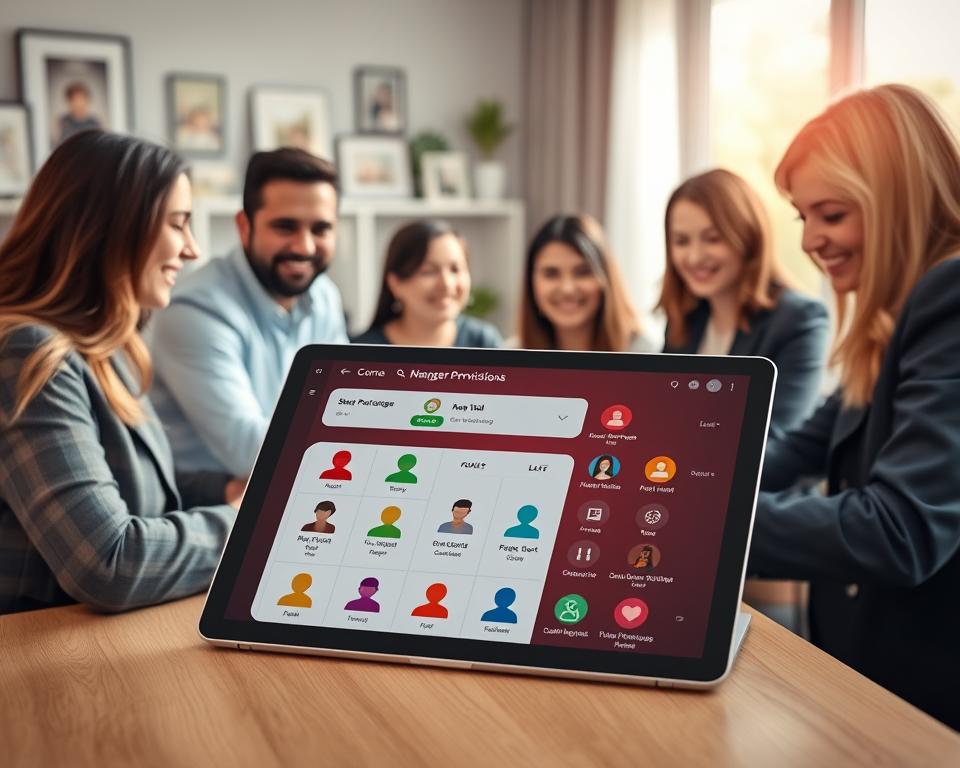
A family password manager keeps shared logins together while protecting each person’s private accounts. Separate vaults help people find details and limit who can view them.
Shared vaults for household accounts
A shared vault or folder suits Wi-Fi, streaming, and other household logins. In RoboForm, family members can use one for credentials, such as a Netflix login. Updates show current details, while shared vault permissions control each person’s access.
Private vaults for personal accounts
Personal email, banking, and health accounts may belong in private vaults. SafeInCloud supports separate personal, family, and work vaults, with each database encrypted on its own. This setup keeps personal logins apart from household accounts.
Secure sharing for one-time access
Some password managers let users share a login without adding it to a family vault. Check whether the app can set an access limit or revoke a share. Features vary, so secure password sharing does not always provide one-time access.
For longer-term emergencies, RoboForm lets an owner name a trusted contact. The contact must wait 24 hours before receiving access. During that time, the owner can deny or approve the request.
Which passwords should your family share?
Use a family vault for Netflix, other streaming services, and home Wi-Fi. This supports secure password sharing without sending credentials through chats or saving them in notes.
Store household Wi-Fi and streaming passwords in one shared folder. With RoboForm, updates to shared logins appear in one place, so family members do not need separate messages.
Personal accounts, such as email and social media, can stay in each person’s private vault. Share access only when others need it.
Which features make a family password manager easy to use?
A family password manager should simplify daily logins and help everyone spot risks. Choose tools that work across devices, support passkeys and two-factor authentication, and give parents clear control over shared accounts.
Autofill across websites and apps
Password autofill saves time and reduces login mistakes. SafeInCloud fills saved passwords across apps and browsers, and fills one-time passcodes in both. Check that autofill works on the devices and browsers your family uses.
Password generation and security alerts
A strong password generator helps each person create unique logins. SafeInCloud’s Security Center flags weak, reused, or compromised passwords and accounts without two-factor authentication.
RoboForm has a password strength center and a built-in one-time password authenticator. NordPass offers password health checks and breach scanning.
Password security alerts can prompt a quick update when a login needs attention. Some apps can store and manage passkeys, which can replace passwords on supported services.
Simple member and permission controls
Clear controls help parents share household logins without exposing every personal account. Look for easy ways to add family members, manage shared vault access, and change permissions. Features and sharing options can vary by plan, so review the details before choosing.
How do family plans protect each person’s private data?
Family plan access limits show how many people may join one subscription. Each member can store personal logins in a separate vault, away from shared household passwords.
| Plan | Member limit | Private vault details |
|---|---|---|
| RoboForm Family | Up to five | Separate member accounts |
| NordPass Family | Up to six | Six separate vaults |
| 1Password and Keeper | Up to five | Keeper includes five private vaults |
| Bitwarden and LastPass | Up to six | Separate member accounts |
| Dashlane Friends & Family | Up to 10 | Private vaults for up to 10 members |
Private family vaults keep work, banking, and personal accounts out of shared storage. Check plan details before signing up because member caps and vault features vary.
SafeInCloud’s free app can be shared across up to six family devices. A reviewer reports that its $4.99 in-app upgrade is not shared through Apple Family Sharing. Each person may need a separate purchase or the Pro version.
How secure are password manager apps for families?
Strong encryption helps protect a family vault when a device or storage account is exposed. SafeInCloud uses AES-256 encryption to encrypt passwords on your device before syncing them. Its zero-knowledge security design lets only you decrypt the vault in your own cloud account or WebDAV storage.
RoboForm uses AES-256 encryption and zero-knowledge security and has passed a third-party security audit. NordPass uses XChaCha20 encryption, protects data on your device, and has had independent security audits.
1Password combines AES-256-GCM encryption with end-to-end encryption and a Secret Key. Its Travel Mode can remove sensitive data from devices during a trip. Keeper uses AES-256 encryption with Elliptic Curve Cryptography.
SafeInCloud supports passkeys and two-factor authentication through a TOTP authenticator. These tools add protection, but families still need strong master passwords and careful account recovery settings.
What does setup look like for parents, partners, and kids?
Families can use one account on several devices or create separate user accounts with personal vaults. Shared vaults keep household logins easy to find, while private vaults protect each person’s accounts.
With 1Password, a family organizer can help manage accounts and restore access. Its administrator tools may support parental controls for login credentials. Aura family plans include parental controls and monitoring tools, but features vary across RoboForm, NordPass, Keeper, and other services.
When managing children’s online accounts, check what each plan lets parents view or control. Some services offer family sharing but lack dedicated parental controls for login credentials, so review features before choosing.
Will the app work across your family’s devices?
Check that the app runs on every device your family uses. SafeInCloud supports iPhone, iPad, Mac, and PC, with vaults that sync across devices. Its iPhone and iPad app requires iOS 15.5 or later.
RoboForm and NordPass support iOS, macOS, Windows, Android, Linux, and major browsers. 1Password also lists support for these platforms and browsers. Keeper works on iOS, macOS, Windows, Android, and Linux, and its family plan allows unlimited devices.
Bitwarden and LastPass support Windows, macOS, Android, iOS, and browsers. Before choosing among password manager apps for families, compare each app’s platform list with phones, computers, and browsers. Cross-device password sync can make shared logins easier to reach on the go.
What happens when someone forgets a password or loses a device?
A family plan can make emergency account recovery less stressful. RoboForm lets a trusted contact request vault access.
The owner has 24 hours to deny the request or grant access sooner. 1Password’s family organizer can help a locked-out member recover access, while LastPass offers emergency access through its family plan.
For master password recovery, review the app’s rules before you need them. SafeInCloud recommends signing in with your master password from time to time, so it stays familiar. Logging in to the app at least once can help preserve biometric access.
If saved passwords or passkeys stop appearing during autofill, SafeInCloud says signing in can restore them. Keep recovery options current, and make sure trusted family members know how to use them.
What should a family budget for a password manager app?
Family plan pricing depends on the provider, billing term, and promotion. Recent comparisons show plans from about $1.59 to $7.08 per month. Use these as examples, not guaranteed current rates.
| App | Example monthly price | Family members |
|---|---|---|
| RoboForm | $1.59 per month in one comparison; $2.66 per month for the first year in another | 5 |
| NordPass | $2.69–$2.79 per month for a two-year term; one source lists renewal at $5.99 per month | 6 |
| 1Password | $3.59 per month on an annual plan, or $43.08 per year; another comparison lists $4.49 per month | 5 |
| Keeper | $3.54 per month with a cited 50% discount; another comparison lists $7.08 per month | 5 |
| Dashlane | $4.07 per month | 10 |
| Bitwarden | $3.99 per month | 6 |
| LastPass | $2.80 per month | 6 |
Check the renewal rate and billing term before subscribing. An introductory price may rise after the first term ends. Family plan access limits also matter, so make sure the plan covers everyone who needs a separate account.
SafeInCloud is listed as free with in-app purchases. One reviewer cited a $4.99 upgrade, so check the app store listing for current terms.
Choose a family password manager that fits your household
Start with your family’s size and habits. Password manager apps for families differ in user limits, private vaults, device support, and recovery tools. Dashlane’s Friends & Family plan allows up to 10 members; Keeper supports five users, and Bitwarden supports up to six.
Next, check how each app handles shared vault permissions and secure password sharing. RoboForm offers shared folders and emergency access. 1Password includes administrator controls and Travel Mode, while NordPass supports up to six accounts and uses XChaCha20 encryption.
For extra control, Bitwarden offers open-source software and optional self-hosting. SafeInCloud supports separate encrypted personal, family, and work vaults, plus passkeys and a built-in two-factor code generator. It can store data in your own cloud account.
Before choosing, compare the plan’s renewal price with the features you will use. Look for clear privacy controls, easy recovery, and support for every family member’s devices. The best fit is one your household can use with confidence every day.




