
ADVERTISEMENT
More than 500 receipts were processed during a 30-day app comparison, showing what a phone can do with paper records. The review tested popular tools on iOS and Android for text accuracy, speed, free-plan limits, and export options.
Photo scanner apps for receipts can capture key details, sort expenses, and make records easier to search. The right app can make digital receipt management a simple habit for household spending or business reports.
Key Takeaways
- Receipt apps can scan and store paper records on your phone.
- Text recognition helps make receipts searchable.
- Free plans may limit scans, storage, or exports.
- App speed and accuracy can vary across devices.
- Cloud and accounting links can simplify expense reports.
Why use a photo scanner app instead of keeping paper receipts?
Paper receipts fade, get lost, and fill drawers. A photo scanner app creates searchable records, so you can find purchases without digging through files. This makes a paperless bookkeeping workflow easier to maintain.
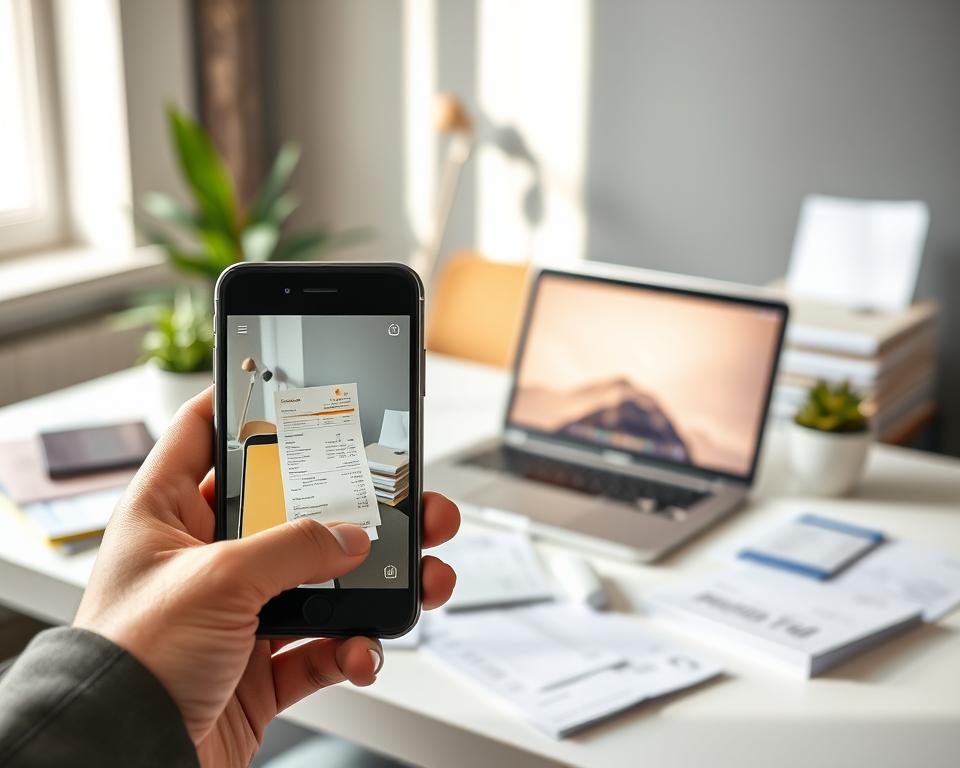
Easy Expense lets you photograph or scan receipts, crop images, and add key details to an expense entry. It stores scanned records on its servers and syncs them to a replacement device after you sign in. You can group expenses into reports, with quarterly and annual summaries available for CSV export.
ADVERTISEMENT
Reviewers have described using custom reports that combine mileage and expenses for monthly reporting and tax prep. One small HVAC business used technician receipt photos and app reports to support bank reconciliation. These tools can make digital receipt management easier for teams and individuals.
| Record-keeping task | Paper receipts | Photo scanner app |
|---|---|---|
| Finding a past purchase | Search through envelopes or files | Look through saved, searchable records |
| Preparing expense reports | Enter details by hand | Group expenses and create summaries |
| Keeping records on a new device | Carry or file the paper copies | Sign in to sync stored scans |
Which receipt scanner apps fit your record-keeping needs?
The best app depends on how much detail you need and where you keep your records. These photo scanner apps for receipts range from simple PDF tools to systems built for work expenses.
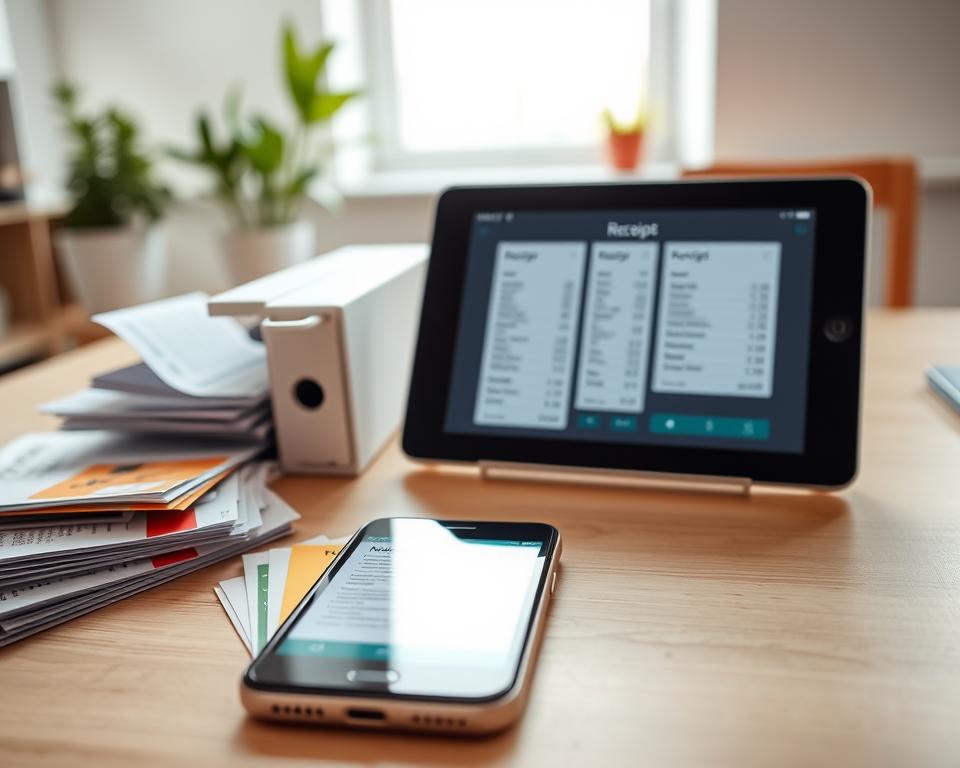
Personal expense tracking with Smart Receipts
Smart Receipts is an open-source, offline-first option with unlimited receipt storage. It provides basic OCR and creates PDF or CSV reports. Its text recognition may be less accurate than commercial apps, and it has few accounting integrations.
Business expenses with Expensify or QuickBooks Online
Expensify’s free plan includes 25 SmartScans per month. It can pull the merchant, date, and amount from each receipt, reducing manual entry. Its links to QuickBooks, Xero, NetSuite, and Sage can support expense report automation.
QuickBooks appears as an integration for expense platforms, but these options do not show separate QuickBooks Online app features. Check current plan details before choosing a workflow.
Basic receipt scans with Adobe Scan and Google Drive
Adobe Scan provides unlimited free scans, OCR, PDF output, and offline scanning. It syncs when connected, but requires a free Adobe account and offers limited free cloud storage.
Google Drive can save scans as PDFs in your Google account, while Google Lens can extract text and amounts. Google accounts include 15 GB of free storage. Together, they support basic OCR expense tracking.
| App | Best fit | Key details |
|---|---|---|
| Smart Receipts | Personal records | Offline use, unlimited storage, PDF and CSV reports, basic OCR |
| Expensify | Work expenses | 25 free SmartScans per month; merchant, date, and amount extraction |
| Adobe Scan | PDF receipt scans | Unlimited free scans, OCR, offline scanning, limited free cloud storage |
| Google Drive and Lens | Simple scans and text capture | PDFs in Drive, text and amount extraction with Lens, 15 GB account storage |
How receipt apps turn phone photos into searchable expense data
Receipt apps use optical character recognition, or OCR, to read text in phone photos. Easy Expense says its OCR detects receipt edges, crops images, and extracts key details to create an expense.
Its editing tools let you rotate a receipt or adjust its crop and perspective. The company says recognition can improve with use.
Image quality matters for OCR expense tracking. Adobe Scan detects receipt edges and adjusts for shadows. Genius Scan handles odd lighting, curved paper, and patterned backgrounds.
App comparisons may test scan speed and how well OCR reads crumpled, faded, or photographed receipts.
Dext claims 99.9% OCR accuracy, including on handwritten and crumpled receipts. Results can still vary by image, so review extracted amounts and dates.
Photo scanner apps for receipts can cut manual entry and make records easier to search.
Which receipt details should the app capture automatically?
A useful receipt scan should capture the vendor, purchase date, and total. A clear item description can prove what you bought. These details support returns, expense reports, and sales tax documentation.
Expensify SmartScan adds the merchant, date, and amount to an expense report. Easy Expense extracts key details, then labels each expense by vendor and category. Dext collects receipts and invoices from phone scans, email, uploads, bank feeds, and online stores.
Check each scan before filing it. OCR expense tracking can miss blurry text or mistake a subtotal for the final amount. A quick review keeps every record useful.
| Receipt detail | Why it matters | What to check |
|---|---|---|
| Vendor name | Shows where the purchase was made | Make sure the business name is readable |
| Date | Places the expense in the right report or tax period | Confirm the month, day, and year |
| Total and tax | Records the amount paid and supports sales tax documentation | Check the total against the receipt, not just the subtotal |
| Item description | Explains what the purchase covered | Keep the item name or a clear summary |
| Vendor and category labels | Makes expenses easier to sort and review | Correct any label the app assigns incorrectly |
How to photograph receipts for accurate text recognition
Place the receipt on a flat, dark surface with even lighting. Keep your phone parallel to the paper, and show every edge in the frame. Avoid glare and deep shadows because they can hide small print.
Many photo scanner apps for receipts can improve an imperfect image. Easy Expense detects and crops receipts, then lets you rotate, adjust cropping, and correct perspective. Adobe Scan detects receipt edges, reduces shadows, and saves scans as PDFs.
For curved paper, dim rooms, or patterned backgrounds, Genius Scan offers tools to improve image capture. Check the preview before saving. A clear image helps OCR expense tracking read dates, totals, and merchant names with fewer errors.
How to organize scanned receipts so you can find them later
A clear filing system simplifies digital receipt management. Use the same folders, labels, and file names whenever you save receipts.
Folders and labels for everyday expenses
Group receipts by month, store, or project. Easy Expense labels expenses by vendor and category, then lets you place them in reports or projects. Its summaries can help you review spending over time.
Categories for tax, work, and household records
Separate work, tax, and household costs into different groups. Easy Expense offers tax-deductible and nondeductible categories, but its defaults may not fit every user. Review each label and adjust your process to match your records.
Naming rules that keep digital files consistent
Choose one pattern for every file, such as date, vendor, and expense type. For example, save a grocery receipt as “2026-10-23-Target-household.” This steady format supports a paperless bookkeeping workflow and makes files easier to search.
| Record type | Suggested label | Useful detail |
|---|---|---|
| Work expense | Work | Project or client |
| Tax record | Tax | Deductible status |
| Household purchase | Home | Store or item type |
Can receipt scanner apps handle returns, warranties, and tax records?
A clear digital receipt can support return or warranty claims. Keep the store name, purchase date, total, and item description easy to read. Save the file before the return window closes.
For tax records, Easy Expense can export quarterly or annual expense data as a CSV file. You can share the file with your accountant or email expense reports for tax purposes. These records can support sales tax documentation, but missing receipts may cause trouble at tax time.
Easy Expense’s mileage tracker can calculate deductions. Keep an up-to-date mileage log because the IRS may ask for it during an audit.
Save mileage reimbursement records with your other expense files. Receipt apps may store purchase proof, but the available details do not describe specific warranty-management tools.
How do receipt apps connect with accounting software and cloud storage?
Receipt apps can send files to storage services or expense data to cloud accounting software. The right setup reduces manual entry and makes digital receipt management easier to maintain.
Exporting receipts as PDFs, images, or spreadsheets
Choose a format that fits the task. Adobe Scan creates PDFs, while Easy Expense syncs data to its cloud account and exports expense summaries as CSV files.
Google Drive stores scanned PDFs in your Google account. Genius Scan can export files to Google Drive, Dropbox, or Evernote.
Syncing records with QuickBooks, Google Drive, and Dropbox
Some apps send expense details straight to cloud accounting software. Zoho Expense, Shoeboxed, Expensify, Dext, and Sage Expense Management offer QuickBooks and Xero integrations. Zoho Expense supports Sage, too.
Tailride pulls receipts from connected email accounts and more than 100 vendor portals, with QuickBooks and Xero integrations.
Dext accepts records from its mobile app, email, web tools, and bank feeds. It can connect with services such as Shopify, Amazon, Etsy, Stripe, and Square. These options keep digital receipt management tied to your existing records.
What privacy and security settings should you check?
Before using a receipt app, check what data it collects, where it stores files, and how long it keeps them. These details matter when digital receipt management covers bank records, work costs, or tax documents.
Easy Expense stores receipts on its servers and syncs them with your account. Its App Store privacy details list possible tracking through usage data. Data linked to users may include financial details, location, contact information, files, identifiers, usage data, and diagnostics.
Background location access may use extra battery.
Smart Receipts is open-source and offline-first, with data kept on your device by default. Dext says it encrypts documents and stores them for seven to ten years. Tailride needs access to connected email accounts and portals, yet says it does not store login credentials.
Review app permissions and connected accounts before syncing receipts with cloud accounting software. Turn off access you do not need, and use a strong password with two-step verification when available.
What do receipt scanner apps cost, and when is a paid plan worth it?
Many photo scanner apps for receipts offer free tools. Paid plans may add storage, team features, or faster expense report automation. Here’s a snapshot of listed prices.
| App or service | Listed cost | What to know |
|---|---|---|
| Adobe Scan | Free | Unlimited scans |
| Genius Scan | Free; Genius Scan+ from $2.99 per month | Paid plan adds upgraded features |
| Google One | Storage upgrades from $1.99 per month | Useful when scans need more cloud space |
| Zoho Expense | Free for three users; paid plans at $3 or $5 per user per month | Unlimited scans are included |
| Wave | Core accounting and receipt scanning are free | Payroll starts at $20 per month |
| Shoeboxed | Free for five documents monthly; paid plans from $18 per month | Mail-in service starts at $39 per month |
| Expensify | Free for 25 SmartScans monthly; paid plans at $5 or $9 per user per month | Paid tiers suit higher scan volume |
| Dext | Free trial; paid plans vary | Pricing scales with client volume |
| Sage Expense Management | Free trial; Growth plan about $11.99 per user monthly | Listed price assumes annual billing |
| Easy Expense | Pricing details vary | Sources describe both a subscription and a free tier with 10 monthly scans |
A paid plan may help if you scan receipts often, need shared access, or want expense report automation. A free plan may cover basic needs for occasional use. Check current plan details before choosing because features and prices can change.
How to pick a receipt scanner app and build a simple scanning routine
Choose an app that fits how you handle expenses. For occasional scans, Adobe Scan or your phone’s built-in scanner may be enough. Wave suits freelancers seeking free accounting tools and receipt scanning, while Smart Receipts fits offline-first storage.
For employee reports, consider Expensify. Teams using corporate Visa or Mastercard cards may prefer Sage Expense Management. It can text employees to request receipts after purchases.
These tools can support expense report automation, but check that the app works with your current accounting setup.
Easy Expense offers receipt scans, mileage tracking, expense reports, CSV exports, and offline use with automatic cloud sync. Its App Store listing requires iOS 16.0 or later. One reviewer entered miles by hand, not background tracking, to save phone battery; mileage reimbursement records stayed in the app.
Build a paperless bookkeeping workflow by scanning each receipt soon after you get it. Check the date, total, and category, then file it in a folder you can find later. A quick weekly review can catch missing details before tax time.




