
ADVERTISEMENT
Teamup says more than 5 million people use its calendar to organize schedules, resources, and teams. This scale shows a common challenge: keeping people, projects, and meetings in sync without a shared office.
The right calendar apps for remote teams make it easier to plan work, share availability, and protect focused work time. Whether your team uses Google Calendar, Apple Calendar, or Microsoft Outlook, one schedule can improve coordination and distributed workforce productivity.
Key Takeaways
- Shared calendars help remote teams plan and coordinate work.
- Choose an app that fits your team’s current tools and routines.
- Clear availability can reduce scheduling conflicts and support focus time.
- The best setup helps distributed workforce productivity without adding extra steps.
Start with the scheduling problems your team needs to solve
Before comparing calendar apps, find where scheduling fails. Understanding team needs helps you choose tools that match how people work.

ADVERTISEMENT
Conflicting time zones and working hours
Remote teams may work across several time zones, making fair meeting times hard to find. Good time zone coordination shows local hours clearly and helps people avoid calls outside work. Scheduling assistants can check calendars and suggest times for everyone.
Meeting overload and protected focus time
Too many calls leave little time for focused work. Choose tools that show busy periods and protect blocks for important tasks. Some apps use AI to suggest meeting times and automate follow-ups, reducing manual planning.
External bookings and availability sharing
Client calls and interviews need an easy way to book open slots. Strong availability management lets people share open times without showing every calendar detail. Teamup offers customizable access for individuals and groups, plus self-booking tools and central access controls.
Google Calendar, Outlook, and Notion Calendar for core team scheduling
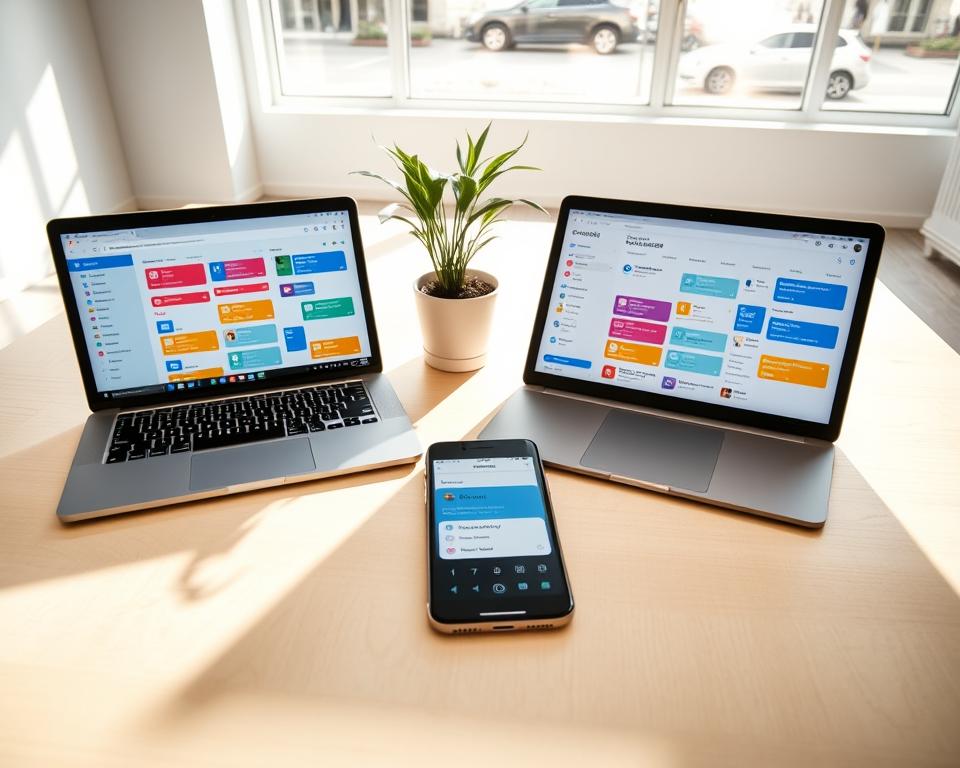
Core scheduling works best with tools your team already uses. These calendar apps for remote teams organize meetings, work hours, and project plans.
Google Calendar for Google Workspace teams
Google Calendar suits teams that use Google Workspace. It supports shared team calendars, two-factor authentication, and data encryption for schedule planning.
Outlook Calendar for Microsoft 365 teams
Outlook Calendar connects with Outlook email, Microsoft Exchange, and Microsoft Office. Users can create events from emails and share calendars privately.
Day, week, and workweek views help teams compare schedules. Outlook works on iOS and Android, and Microsoft 365 plans start at $69.99 per year.
Notion Calendar for teams that plan around projects
Teams planning work around projects may consider Notion Calendar. It fits teams that include calendar planning in a broader project workflow.
Calendly, Doodle, and Microsoft Bookings for external scheduling
When people outside your team need to meet, each email can add another step. Meeting scheduling software reduces back-and-forth by helping participants find a time that works. Shared calendar access gives guests a clearer view of open slots.
Calendly for client and candidate meetings
Calendly helps arrange meetings with people outside your team, including clients and job candidates. A scheduling assistant checks participants’ availability and suggests times for an easier first call.
Doodle for finding a time that works for a group
Doodle helps when several people need to agree on a meeting time. Instead of trading messages, participants share when they are free. This approach supports availability management across a group.
Microsoft Bookings for appointment-based scheduling
Microsoft Bookings suits appointment-based scheduling, including customer consultations and service sessions. Consider each tool’s fit with your team’s process, calendar access, and meeting scheduling software needs.
Handle time zones, working hours, and out-of-office blocks
When a team spans regions, clear calendars make time zone coordination easier. Roger Sessions, co-founder of Meditation Chapel, said its Teamup calendar supported 150 online meditation groups across four virtual chapels. About 6,000 people used it across roughly 20 time zones.
Set clear working hours and planned time off so teammates can see when someone is available. Calendar tools vary, so check whether they show local times and out-of-office blocks clearly for your team.
For teams that rarely overlap, asynchronous work planning reduces the need for live meetings. Share deadlines and updates on the calendar, and save calls for topics needing group discussion.
Reclaim, Motion, and Clockwise for calendar automation
Calendar automation helps teams create focused work time and reduce scheduling steps. Reclaim, Motion, and Clockwise connect calendars with daily work in different ways. These tools can support asynchronous work planning across time zones.
Reclaim for protecting tasks and recurring habits
Reclaim suits teams that want time for tasks and regular habits. Set priorities, keep key routines on the calendar, and check blocks around meetings. Clear blocks help people plan work without sharing every detail of their day.
Motion for combining tasks, projects, and meetings
Motion combines task planning and calendar scheduling in one workflow. It may suit teams that want project work and meetings in one place, not separate tools. This view can support asynchronous work planning by showing when people have time for focused tasks.
Clockwise for reducing fragmented meeting schedules
Clockwise helps teams manage their calendars. Use it to review meeting patterns and protect longer blocks of focus time. For distributed workforce productivity, compare how each tool handles your team’s work hours, calendar setup, and scheduling needs before adopting it.
Teamup and TimeTree for shared group calendars
Some teams need calendars for more than meetings. Shared team calendars can track events, resources, and availability in one place. Teamup offers detailed controls, while TimeTree suits groups viewing personal and work plans together.
Teamup for coordinating team events and availability
Teamup reports more than 5 million users and offers 12 calendar views, including Timeline, Scheduler, Tiles, and Table. Admins can choose from nine permission levels and limit what read-only users see. Access can be set for people or groups.
Events can include comments, signups, maps, links, files, and images. These tools help remote teams coordinate schedules and shared resources without crowding events with extra details.
TimeTree for shared personal and work calendars
TimeTree is another option for groups that keep personal and work plans in one shared view. Before moving plans, compare how calendar apps for remote teams fit your group’s routines, privacy needs, and scheduling habits.
Check integrations before you commit to a calendar app
Check how a calendar app works with tools your team already uses. Outlook Calendar connects with Outlook email, Microsoft Exchange, and Microsoft Office, and works on iOS and Android. These calendar integrations keep events in sync across work and mobile devices.
When teammates use different devices or operating systems, cross-platform calendar compatibility matters. Confirm everyone can view updates and manage events without extra steps. Teamup offers calendar feeds for external collaborators and supports sharing across platforms and organizations.
Test one calendar app before rolling it out to the whole team
Run a short pilot with people from different roles and devices. Use shared team calendars for real meetings and project deadlines to mirror daily work.
Set clear rules for roles, permissions, and updates. Check time zones, platform syncing, and alerts. Customize shared details without exposing private events.
Keep work events in a separate calendar from personal plans. Ask pilot users whether availability management feels clear and reliable. Regular upkeep prevents stale events and missed changes.
| Pilot check | What to review |
|---|---|
| Access | Confirm each role has the right viewing and editing permissions. |
| Compatibility | Test calendar sync and alerts on the devices the team uses. |
| Privacy | Keep personal events separate and limit shared details to what coworkers need. |
| Maintenance | Assign someone to review settings and remove outdated events. |
Pick the calendar app that fits your team’s real workflow
The best calendar apps for remote teams fit your team’s daily workflow. Compare price, ease of use, privacy, security, and links to tools your team uses. Google Calendar, Apple Calendar, and Microsoft Outlook all support shared scheduling.
Check sharing settings and each app’s privacy policy before adding the whole team. Google Calendar offers two-factor authentication and data encryption. Apple Calendar can use Face ID or Touch ID on supported devices.
Choose meeting scheduling software that solves your team’s main problems. These may include fewer time-zone mix-ups, protected focus time, or easier client bookings. Test it with a small group first, then expand if it supports your workflow and distributed workforce productivity.




