
ADVERTISEMENT
Some estimates put daily phone use at five hours. That is a lot of time spent tapping and scrolling. A crowded home screen can slow simple tasks.
To declutter phone home screen icons, keep useful apps close and hide distractions. This quick reset supports digital minimalism by reducing visual clutter and alerts you don’t need.
Key Takeaways
- A simpler screen makes apps easier to find.
- Keep your most useful apps within easy reach.
- Move distractions out of sight.
- Turn off alerts you don’t need.
- A quick reset can make everyday phone use feel smoother.
Start with a quick audit of every home screen
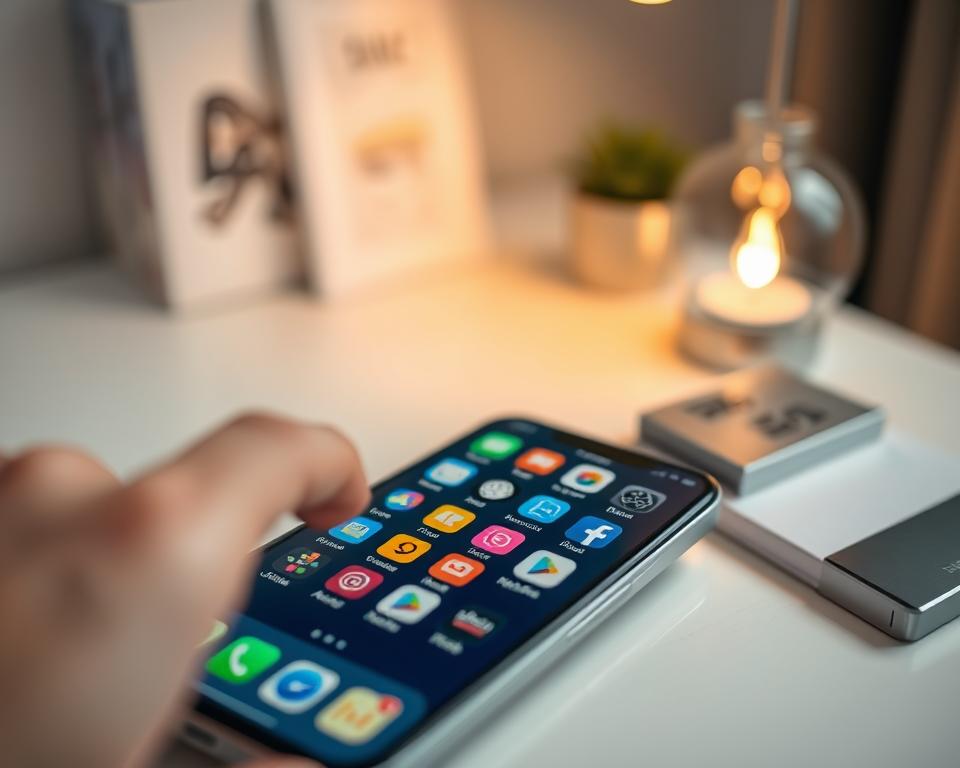
Review each home screen, along with your app library or drawer. Find apps you rarely open, duplicate shortcuts, and pages that are hard to scan. This check gives your app icon organization a clear starting point.
ADVERTISEMENT
Try this seven-minute reset:
- Spend two minutes clearing clutter from your home screen.
- Use one minute to move distracting apps out of sight.
- Take two minutes to turn off unwanted notifications.
- Spend one minute deleting 20 photos you no longer need.
- Use the last minute for one calming change, such as a simpler wallpaper.
Keep changes that make your screen easier to scan. A small reset can smooth daily tasks without a full phone makeover.
Uninstall apps you no longer use
Review each app. If you have not used it in the past month or no longer know its purpose, consider deleting it. Remove trial apps left unused for a week or two. This small step supports digital minimalism and keeps your home screen easy to scan.
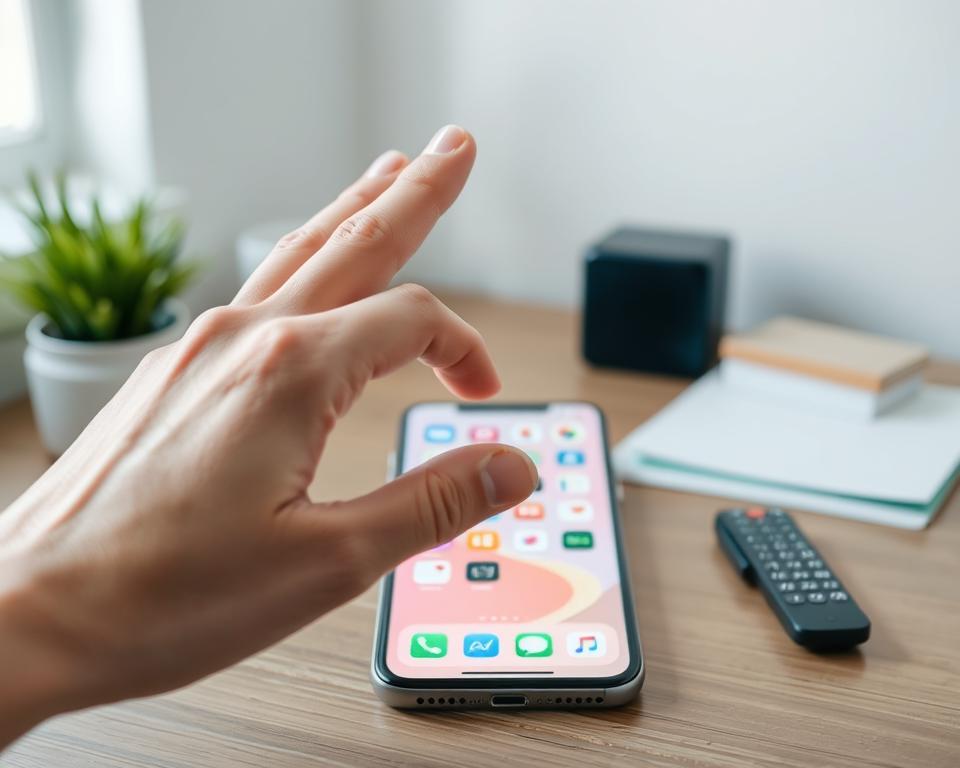
On iPhone, press and hold an app icon, then choose the remove or delete option. On Android, press and hold the icon and tap Uninstall, or open App info and select Uninstall. You can download an app again if you need it.
Unused apps take up storage, which matters when your phone is nearly full. Clearing them can make screen time management easier by reducing the apps that compete for your attention.
Keep only daily essentials on the first page
To declutter phone home screen, keep the first page for apps you use almost every day. Phone, Messages, Calendar, Maps, Music, and your banking app are common picks. Add one routine or focus tool if it supports your day.
Aim for four to six key apps, or limit the page to three rows of everyday icons. Save four favorites for the dock. This simple app icon organization keeps your main screen easy to scan.
Move less-used apps to your phone’s app library or drawer
Apps you rarely open can stay installed without crowding your Home Screen. Move them away, then use search when you need them. This keeps app library folders and main screens easier to scan.
On iPhone, remove apps from the Home Screen
Touch and hold an app, tap “Remove App,” and choose “Remove from Home Screen.” The app stays in the App Library, so you can open it when needed.
To find it fast, swipe down from the Home Screen’s middle, tap the search bar, and type its name. Spotlight can also find phone numbers, directions, definitions, and text messages. These quick search gestures can work with accessibility shortcuts for easier access.
On Android, use the app drawer instead
Keep less-used apps in the app drawer instead of placing them on your Home Screen. If you forget where an app is, open the drawer and search for it by name.
Group related apps into small, clearly named folders
Drag one app icon onto another to create a folder. Open the folder to add more apps. This app icon organization keeps related tools together and reduces screen clutter.
Create folders for communication, work, travel, and entertainment
Use clear labels such as Social, Work, Travel, Photos, Productivity, Utilities, Entertainment, and Finance. Put apps you rarely use but cannot delete in an Extra folder. Clear groups make app library folders easier to scan and help you find apps faster.
Keep folder names short and easy to scan
Choose one or two words that describe each folder’s contents. Avoid vague names and tiny categories with only one app. Tucked-away apps are easy to forget, so use labels that clearly show each folder’s contents.
Put your fastest-tapping apps in the dock
Your dock stays visible while you move between home screens, so reserve space for apps you use daily. Phone, Messages, your browser, and Camera are practical choices. This app icon organization keeps key tools close and reduces searching.
Accessibility shortcuts can also speed up common tasks. On iPhone, swipe up from the screen bottom, then tap the Camera icon to open it. If speaking feels easier, ask Siri to place a call.
Add only widgets that save you repeated taps
A useful widget shows key details without opening an app. Weather, calendar events, and reminders deserve space if you check them often. Thoughtful widget placement keeps these details visible without crowding your icons.
Start with one calendar or routine reminder. Keep it only if it helps with a task you repeat. Remove widgets you rarely use, and leave open space so you can find apps at a glance.
Remove visual distractions and unnecessary notification badges
Notifications can pull you into apps when you only meant to check the time. Review your five biggest sources, such as social media, shopping, news, games, or reminder apps. Use notification badge settings to turn off alerts you do not need, while keeping the ones that matter.
A neutral background can make icons easier to scan. Try wallpaper customization, remove unused widgets, or move distracting apps into a folder or onto another page. That small pause can help you stay focused.
Test your most common tasks and adjust the layout
Use your new layout for a week or two. Watch which tasks still take too many taps, then move those apps to the first page or dock. Strong app icon organization makes daily actions feel quick and simple.
On iPhone, Spotlight finds apps, phone numbers, directions, definitions, and text messages. Siri can place calls, while the swipe-up Camera shortcut opens the camera quickly. Set up accessibility shortcuts for tools you use often.
Keep apps you rarely use on later screens or in folders. Try to limit your home screen to three pages; a fourth can be a catchall. Use this quick check to improve your app icon organization:
| Common task | Try this adjustment | What to check |
|---|---|---|
| Open a daily app | Move it to the first page or dock | Can you reach it in one tap? |
| Find an app or detail | Use Spotlight search | Does search save time over browsing? |
| Call someone or take a photo | Use Siri or the Camera shortcut | Can you start the task without hunting for an icon? |
| Open a less-used app | Place it in a folder or later screen | Are your main pages still easy to scan? |
| Use a frequent phone tool | Set up relevant accessibility shortcuts | Is the shortcut easy to reach and remember? |
Keep the decluttered screen working with a quick monthly reset
Phone clutter can return as new apps arrive and routines change. Set aside 10 to 15 minutes each month to delete unused apps, update folders, and place essentials within easy reach.
Use this reset to check whether your layout still supports daily tasks. This review can help you declutter phone home screen choices before visual clutter slows you down again.
For an extra nudge, try a seven-minute check once a week, perhaps Sunday evening or Friday after work. Small habits support digital minimalism and better screen time management without making phone care a chore.




