
ADVERTISEMENT
One gigabyte can hold roughly 200 to 500 smartphone photos, depending on their size. Moving that many files does not require a cable. The right file transfer apps between devices make wireless data migration quick and simple.
For Android and Windows, Google’s Quick Share app requires installation on the PC. Google’s Terms of Service and Privacy Policy apply; Microsoft Phone Link and Link to Windows support compatible Android devices. Send Anywhere offers another option: send a one-time six-digit key, a link, or connect to a specific device.
Key Takeaways
- Wireless apps can move files without a cable.
- Quick Share connects compatible Android devices and Windows PCs.
- Phone Link supports sharing with compatible Android devices.
- Send Anywhere offers several ways to share files.
- Choose an app that works with both devices.
Which file transfer app fits your devices?
Your best choice depends on the devices at both ends. Cross-platform file sharing helps when devices use different software.
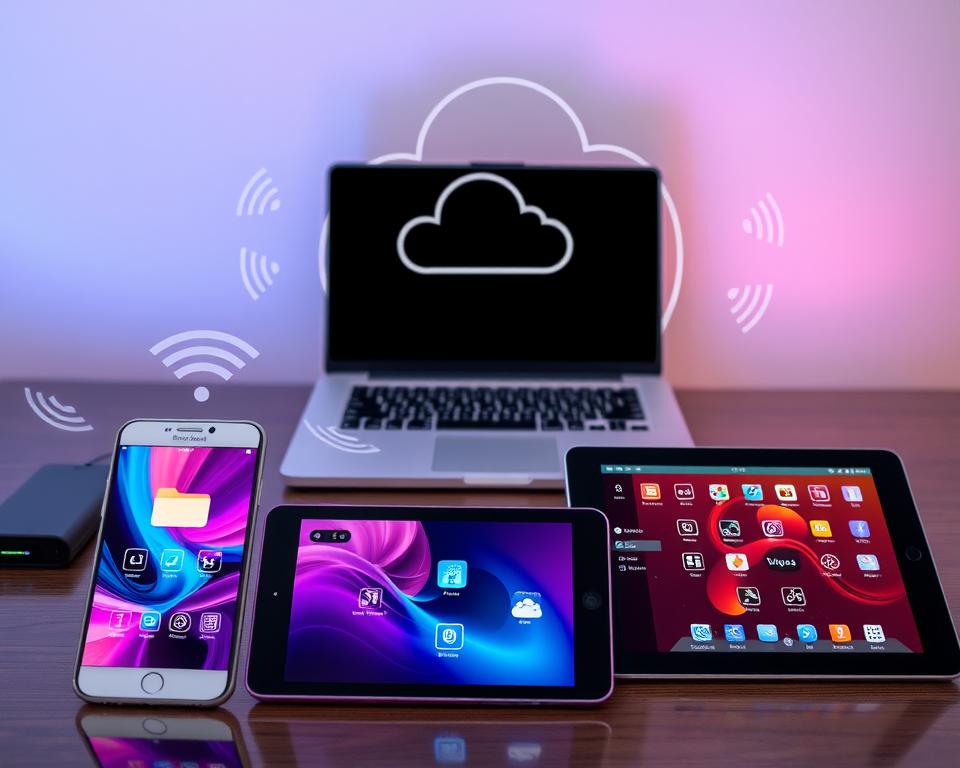
Apple devices: iPhone, iPad, and Mac
If you use Apple devices, check AirDrop compatibility before choosing a transfer method. Make sure each device supports the same option and meets its current requirements.
ADVERTISEMENT
Android phones, tablets, and Windows PCs
Quick Share supports file transfers between Android devices and Windows PCs. Phone Link requires Windows 10 with the May 2019 update or later, or Windows 11. It also requires Android 10 or later and Link to Windows 1.24032.518.0 or later. Phone Link must be version 1.24032.156.0 or later.
Mixed devices from different brands
For cross-platform file sharing, Send Anywhere can send files to one device or several people through a link. APK files have limits across operating systems, so check the file type before sending.
| Devices | Option to consider | Key check |
|---|---|---|
| Apple devices | AirDrop | Confirm AirDrop compatibility for each device. |
| Android and Windows | Quick Share | Check that both devices support the app. |
| Different operating systems | Send Anywhere | Review link settings and APK file limits. |
AirDrop and other apps for Apple devices
Apple offers two simple ways to move files: AirDrop for nearby devices and iCloud Drive for access across devices. Choose based on where the file needs to go.
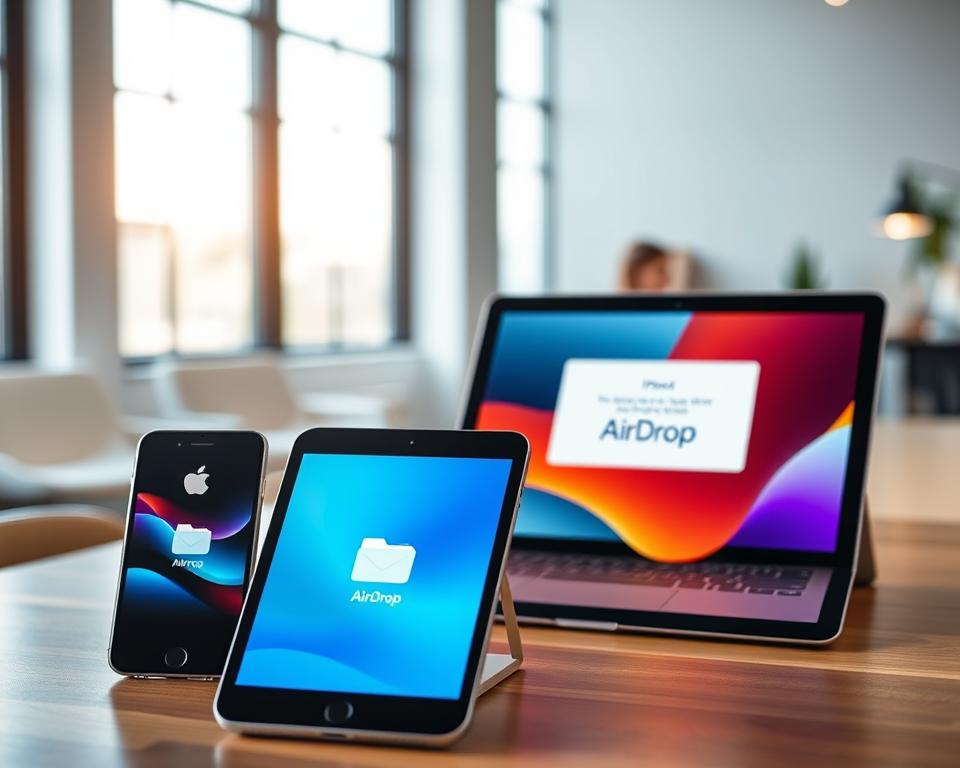
AirDrop for nearby Apple devices
AirDrop sends files directly to nearby Apple devices, including an iPhone, iPad, or Mac. AirDrop compatibility depends on the devices and their settings, so make sure both devices can receive files. It works well for quick sharing without uploading files to cloud storage.
iCloud Drive for files you need across devices
iCloud Drive works well for files you need on more than one device. With cloud storage sync enabled, files can appear on devices signed in to the same Apple Account. Syncing requires an internet connection and enough available iCloud storage.
| Option | Best for | What to check |
|---|---|---|
| AirDrop | Sending files to a nearby Apple device | Device compatibility and receiving settings |
| iCloud Drive | Accessing files across your Apple devices | Apple Account, sync settings, and storage space |
Quick Share and Android-focused transfer apps
Android users have several simple ways to send files nearby. Quick Share connects Android devices with Windows PCs. Files by Google offers nearby sharing for Android devices.
Quick Share for Android and Windows
Quick Share, once called Nearby Share, works with Android devices and Windows PCs. For Android-to-Windows sharing, keep the PC nearby so it can be found.
To send files from Windows to Android, drag files or folders into Quick Share, or select them. The recipient must accept before the transfer starts.
Files by Google for nearby Android transfers
Files by Google lets you share files between nearby Android devices. It helps when you want to send items without using a cloud link.
Some tools use a local network transfer or Wi-Fi Direct to move files. Send Anywhere uses the Google Nearby API, and Bluetooth may help find nearby devices.
| Option | Works with | What to know |
|---|---|---|
| Quick Share | Android and Windows | Keep the Windows PC nearby; the recipient accepts incoming files. |
| Files by Google | Nearby Android devices | A handy choice for sharing files between Android devices. |
| Send Anywhere | Devices using its sharing feature | Uses the Google Nearby API and may use Bluetooth to identify nearby devices. |
Cross-platform apps for Apple, Android, Windows, and Mac
When devices use different brands, cross-platform file sharing makes sending photos or documents easier. These tools connect through a shared network or a web browser.
LocalSend for private transfers on the same network
LocalSend sends files between devices on the same network. A local peer-to-peer connection helps move files without uploading them to cloud storage.
Send Anywhere for sharing across different networks
Send Anywhere supports any file type and keeps the original file unchanged. You can use a one-time six-digit key, share a link with multiple people, or send it to a specific device.
The service says Wi-Fi Direct transfers work without mobile data or an internet connection, and use 256-bit encryption. Options can vary by transfer method, so check the details before sending.
PairDrop for browser-based transfers without installing an app
PairDrop lets you start a transfer in a web browser without installing a separate app. It can help with cross-platform file sharing when you want a simple peer-to-peer connection.
How wireless file transfers work without cables
Wireless sharing sends files between devices through Wi-Fi or a direct device link. A peer-to-peer connection moves files without a cable or internet access. Send Anywhere uses Wi-Fi Direct, so transfers need neither mobile data nor an internet connection.
Send Anywhere may use Bluetooth to find nearby devices. Its Wi-Fi Direct sharing may request location access through Google Nearby API. These settings help devices discover each other, but transfers still need no cable.
Microsoft Phone Link uses a different setup. Dragging files between an Android device and a PC requires both devices on the same Wi-Fi network. This is a local network transfer.
Cross-device copy and paste can use mobile data when syncing over mobile data is allowed. This happens when Wi-Fi is unavailable.
Which files can these apps send, and how fast?
Most transfer apps support common files, but each app and device may have different limits. For smooth wireless data migration, check file size, connection type, and transfer rules first.
Photos, videos, documents, and folders
Send Anywhere supports any file type and says it keeps original files unchanged. Quick Share for Windows sends files and folders by drag and drop or selection.
Phone Link drag and drop supports files, but not folders or cloud-backed files. It allows up to 100 files at once, with a 512 MB limit per file. Its cross-device copy and paste supports text and images, but resizes images over 1 MB.
Wi-Fi, mobile data, and Bluetooth speed differences
Wi-Fi is often faster than Bluetooth for large transfers, while Bluetooth suits small files. Actual transfer speed limits depend on the devices, network quality, and file size. No measured speeds are provided for Send Anywhere’s Wi-Fi Direct transfers.
Send Anywhere says Wi-Fi Direct transfers files without mobile data or internet. Phone Link drag and drop requires both devices to use the same Wi-Fi network. Apps that send files over the internet may use mobile data, so check your connection before a large transfer.
| App or connection | File support | Key limit or requirement |
|---|---|---|
| Send Anywhere | Any file type | Wi-Fi Direct works without mobile data or internet; measured speeds are not provided. |
| Quick Share for Windows | Files and folders | Select items or drag and drop them. |
| Phone Link | Files, text, and images | Drag and drop allows 100 files, up to 512 MB each; both devices need the same Wi-Fi network. |
| Bluetooth | Small files | Often slower than Wi-Fi for large transfers. |
What to check before sending private files
Before sharing a private file, check who can see your device and what the app can access. These quick checks help you choose safer settings in file transfer apps between devices.
Device visibility and transfer permissions
Set your device to appear only to people nearby or to contacts, when those options are available. Quick Share requires the nearby Windows recipient to accept a transfer before it starts.
Review transfer permissions before sending. Send Anywhere needs storage access to send and save files. It may request location access for Wi-Fi Direct discovery. Access to contacts, the camera, or an SD card supports features like sharing contacts or scanning a QR code.
Encryption, links, and expiration settings
Send Anywhere says transfers are encrypted in transit and describes its file encryption as 256-bit. Its privacy information says it may share location data with third parties and collect location, personal information, and other data. You can request deletion of your data.
When sharing through a link, check who can open it and whether it has an expiration setting. The details available here do not confirm Send Anywhere link expiration options.
Public Wi-Fi and sensitive files
Avoid sending sensitive files over public Wi-Fi when you can. Use a trusted network or wait until you have a more private connection. Even with encryption, check the recipient and transfer permissions before you tap send.
Why a transfer fails and how to fix it
Most failed transfers involve poor visibility, a weak connection, or a file the receiving app cannot read. Check these basics before trying again.
Devices cannot find each other
Put both devices on the same Wi-Fi network, and turn on nearby sharing. For a local network transfer, check that the app can access the network. Wi-Fi Direct works without internet access, so lost internet may not block every transfer.
The connection drops during a transfer
Send Anywhere says network conditions can delay or cancel a transfer. Check your router, network cable, and VPN, then try again with a stable connection. For Phone Link, turn on copy and paste, then close and reopen Phone Link and Link to Windows.
Restart your PC if the issue continues. Phone Link drag and drop allows one transfer at a time. Keep Phone Link open because minimizing it cancels the transfer.
If copied text is too large, send a smaller section.
Files arrive slowly or do not open
Weak Wi-Fi and large files can affect transfer speed limits. Move devices closer to the router, or use a steady local network transfer. A received video may not appear in your gallery or play in your current app.
Find it with a file manager, then try a compatible video player.
| Problem | What to try |
|---|---|
| Devices are not visible | Check Wi-Fi, sharing permissions, and app access. |
| Transfer stops | Check the router and VPN; keep Phone Link open during drag and drop. |
| Text will not copy | Turn on Phone Link copy and paste, then try a shorter text selection. |
| Video will not play | Locate it with a file manager and open it in a compatible player. |
Pick the best app for your next transfer
Choose an app that matches your devices and sharing needs. AirDrop works well across Apple devices, while Quick Share, once called Nearby Share, suits Android and Windows. For mixed devices, LocalSend keeps transfers on your local network, while PairDrop works in a browser.
Quick Share sends files between Android phones and Windows PCs in either direction. When sending from Windows to Android, the phone user must accept the transfer. Phone Link also shares files between compatible Android devices and Windows PCs.
Files sent to Android go to Downloads > Sent from your PC. Files sent to a PC go to Downloads\Phone Link, and Phone Link settings let you change that folder.
For transfers across networks, Send Anywhere offers six-digit keys, shareable links, device-to-device sending, and Wi-Fi Direct. It also uses 256-bit encryption.
Phone Link sends cloud-stored files as links to their cloud locations, not local copies. Check your cloud storage sync settings when you need files on both devices.
In short, the best file transfer apps between devices depend on distance, privacy, and file size. Use a nearby transfer for quick local sharing, or a cloud link when people need access later.




