
ADVERTISEMENT
Bluetooth can connect devices in seconds, but one small setting can stop pairing, audio streaming, or file transfers. These simple steps can fix Bluetooth connection problems, so you may not need new gear.
Start Bluetooth troubleshooting by checking that both Bluetooth devices are on, nearby, and ready to pair. This guide covers phone and computer steps, including Windows tools and Android checks, to restore reliable wireless connections.
Key Takeaways
- Check power, range, and pairing status first.
- Restarting both Bluetooth devices can clear common glitches.
- Windows offers Bluetooth help through the Get Help app.
- Android users can check Bluetooth settings and confirm the devices are paired and connected.
- Compatibility, discovery settings, and drivers can affect wireless connections.
Start with the fastest Bluetooth connection checks
Start by checking device compatibility: both devices must support Bluetooth. Make sure both devices are powered on and nearby. Check that the accessory has a full charge or fresh batteries.
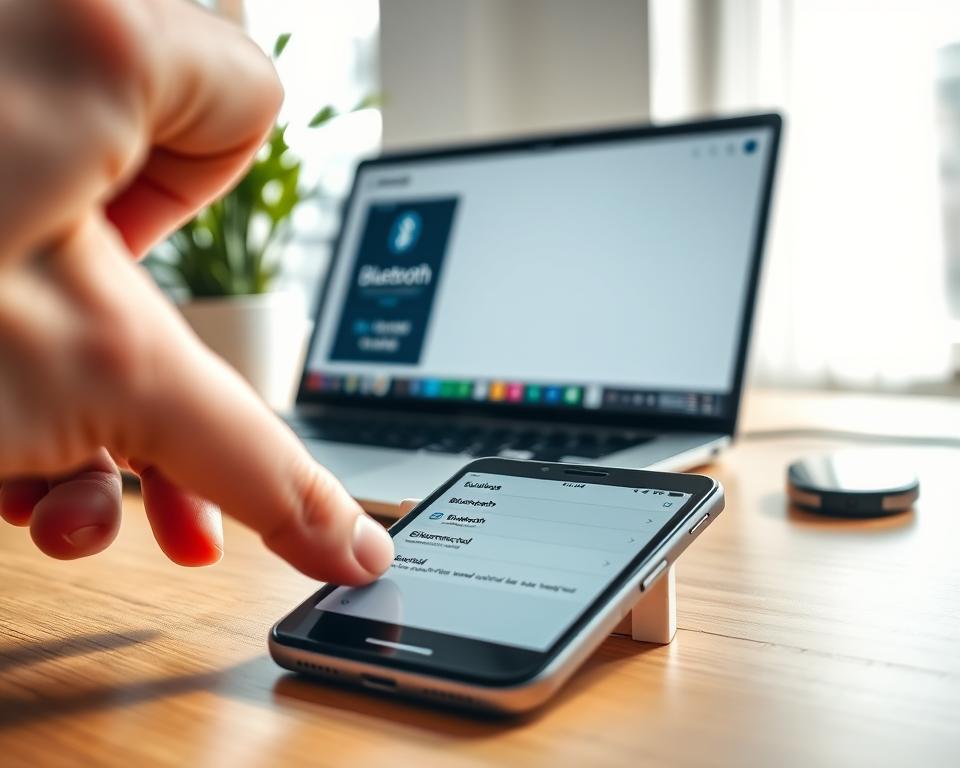
On Windows, confirm Bluetooth is on in Settings or Quick Settings, and turn off Airplane mode. On Android, switch Bluetooth off, then back on. Check that the accessory shows as paired and connected.
ADVERTISEMENT
These simple checks can fix Bluetooth connection problems before you change advanced settings. If the devices still will not connect, restart both and try again.
Bring the devices closer and remove common connection blockers
Keep your phone or computer close to the Bluetooth accessory during pairing. Walls, furniture, and other devices can weaken signals and reduce Bluetooth range. Moving the devices closer can help identify wireless interference.
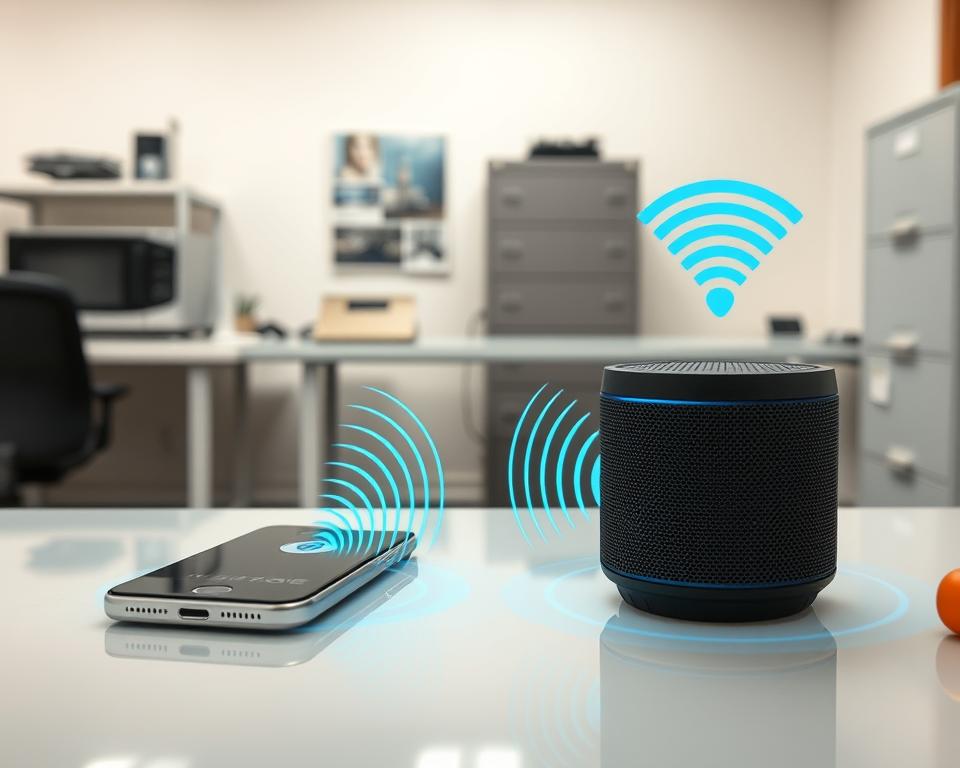
On Windows, an unshielded USB device in a USB 3.0 port may disrupt Bluetooth. This issue is more likely when the accessory sits nearby. Move the accessory away from the port, or unplug the USB device briefly and try again.
For Android Fast Pair, keep your phone within 0.5 meters, or about 1.6 feet. The Fast Pair distance is short, so bring the devices close. Make sure Bluetooth, Location, and a Wi-Fi or mobile network connection are on.
| Connection issue | What to try |
|---|---|
| Weak Bluetooth signal | Move the phone or computer closer to the accessory. |
| Possible USB 3.0 interference | Move the accessory away from an unshielded USB device or unplug it briefly. |
| Fast Pair does not appear | Keep the phone within 0.5 meters and turn on Bluetooth, Location, and Wi-Fi or mobile data. |
Turn Bluetooth off and back on for both devices
Turn Bluetooth off on your phone or computer and the accessory. In Windows, open Settings and switch Bluetooth off; on Android, use the Bluetooth toggle in Settings or Quick Settings. Wait a few seconds before turning Bluetooth back on.
Check that both devices show as paired and connected. If not, reconnect Bluetooth in your device’s Bluetooth settings. This quick reset can help fix Bluetooth connection problems.
Restart the phone, computer, and Bluetooth accessory
Restarting can clear a temporary glitch on your phone or computer. Turn off the device, wait a few seconds, and turn it on again. Restart Bluetooth devices, such as headphones or speakers, if they still will not connect.
For Bluetooth connection troubleshooting on Windows, turn off an unresponsive accessory, wait a few seconds, and turn it on again. If Windows asks you to restart after a Bluetooth driver update, save your work first.
| Device | What to do |
|---|---|
| Phone or computer | Restart it to clear a temporary connection issue. |
| Bluetooth accessory | Turn it off, wait a few seconds, and turn it back on. |
| Windows computer | Restart after a driver update if prompted. |
Put the accessory into pairing mode
Check the accessory’s instructions to turn on Bluetooth pairing mode. A flashing blue light often means it is ready to connect. Keep it near your phone or computer when you pair a Bluetooth accessory.
If it does not appear, check your device discovery settings. In Windows 11, change Bluetooth discovery from Default to Advanced to show more device types. In Windows 10, open Bluetooth options and let other Bluetooth devices find your PC.
Some folio keyboards must connect to a phone or tablet before pairing. Follow the accessory’s setup steps to make it discoverable.
Forget the old pairing and connect again
An old pairing can block a new connection. On Windows, open Bluetooth settings, select the device, and choose remove. On Android, open Connected devices or Bluetooth, tap the saved accessory, and choose Forget. This helps remove Bluetooth device details from your phone or computer.
For a car connection, forget the car on your phone and clear saved devices in the car’s Bluetooth menu. Check the owner’s manual for steps to remove your phone from the car’s paired list. Refresh the device list, then follow the car or phone prompts to pair again.
If you need a passcode, try 0000 or 1234. These codes work with many Bluetooth accessories, but some devices use different codes.
Check Bluetooth permissions and device settings
A phone may find an accessory but fail to connect when Bluetooth is off or an app lacks access. Check Bluetooth permissions, the phone’s connection menu, and the app’s access before pairing again.
Fix Bluetooth settings on Android and iPhone
On Android, open Android Bluetooth settings and check Connected devices or Bluetooth. Review saved devices and pairing options. Menu names vary by Android version and phone maker, so check manufacturer guidance if steps differ.
For Android Fast Pair, turn on Bluetooth and Location. Keep the phone near the accessory, then connect to Wi-Fi or mobile data. On iPhone, open Settings, tap Bluetooth, and turn it on; these device discovery settings help find nearby accessories.
Allow Bluetooth access for the app you need
If one app cannot use a connected device, review its Bluetooth permissions. On iPhone, open Settings, then Privacy & Security, then Bluetooth; allow access for the app. On Android, open Settings, choose Apps, select the app, and check Permissions. The menu may show Nearby devices or a similar option.
| Phone | What to check |
|---|---|
| Android | Bluetooth, saved devices, pairing options, and the app’s Nearby devices permission. |
| iPhone | Bluetooth in Settings and the app’s access under Privacy & Security. |
Fix Bluetooth problems on Windows and Mac
Menu names vary by operating system, but a quick check of Bluetooth settings can show why an accessory will not connect. Follow the steps for your computer.
Check Bluetooth settings in Windows
On Windows 11, open Quick Settings from the taskbar and check that Bluetooth is on. For more options, open Settings, then Bluetooth & devices. Run the Windows Bluetooth troubleshooter in the Get Help app, or open Settings, System, Troubleshoot, and Other troubleshooters.
On Windows 10, check the taskbar or open Settings, Devices, and Bluetooth & other devices. Find the Bluetooth troubleshooter under Settings, Update & Security, and Troubleshoot.
Microsoft ended Windows 10 support on October 14, 2025. Windows 10 now receives no free software updates, technical help, or security fixes through Windows Update.
Remove and reconnect the accessory on Mac
For a Mac Bluetooth connection, open System Settings and choose Bluetooth. Find the accessory, remove or forget it, and put it back in pairing mode.
Select it in the nearby devices list to pair again. Check that Bluetooth is on and the accessory has power.
Update your operating system, drivers, and accessory firmware
Install available operating system updates because they can fix Bluetooth bugs. Outdated device drivers can cause dropouts or stop pairing.
In Windows, open Device Manager and expand Bluetooth. Right-click your adapter, choose Update driver, then select Search automatically for drivers. If Windows finds nothing, download the latest driver from your PC maker, install it, and restart if prompted.
Check the accessory maker’s app or instructions for firmware updates. A Bluetooth driver update and current accessory software can help devices work together.
| What to update | Where to check | Next step |
|---|---|---|
| Operating system | Your computer’s update settings | Install available updates and restart if asked. |
| Bluetooth driver | Device Manager in Windows | Search automatically, or get the driver from your PC maker. |
| Accessory firmware | The maker’s app or instructions | Follow the maker’s steps to install updates. |
Fix Bluetooth audio that connects but does not work
A Bluetooth connection may look active while music or calls use the wrong audio setting. Check sound output and saved device options to find the problem.
Choose the correct sound output
On Android, open the saved Bluetooth device’s settings and turn on Bluetooth Media audio. Check volume on the phone and accessory, and ensure another paired device is not playing music. In Windows, select the Bluetooth device as the sound output in audio settings.
If sound plays through only one channel, check the app’s balance controls and device audio settings. Some cars do not support Bluetooth music playback, so check the car manual for audio profile compatibility.
Check the microphone and call settings
For calls, turn on Phone audio in the saved device’s Bluetooth settings. Check that another paired device is not receiving calls. Bluetooth Phone audio handles calls, while Bluetooth Media audio handles music and other media.
| What you notice | What to check |
|---|---|
| Music is silent | Raise the phone and accessory volume; enable Media audio. |
| Calls have no sound | Enable Phone audio; check which paired device receives calls. |
| Only one channel plays | Review the computer’s balance and audio output settings. |
| Car audio does not work | Check the car manual for Bluetooth music and call support. |
Stop connection conflicts from other paired devices
Another phone, tablet, or car stereo may use the connection you need. If Bluetooth audio will not play through your car or accessory, check other paired devices. Make sure they are not playing music or handling a call.
Multipoint connection conflicts can occur when an accessory links to more than one device. Disconnect the unused device, then try again. If an old phone blocks your car, remove unused phones from the car’s paired device list.
Also remove the car from your phone’s saved Bluetooth devices. Pair the phone and car again, and keep other paired devices disconnected during setup. This can help clear paired device conflicts.
| What you notice | What to try |
|---|---|
| Music plays from another device | Pause playback or disconnect that device from Bluetooth. |
| Your car won’t connect to your phone | Remove unused phones from the car’s paired list. |
| An old car pairing keeps returning | Forget the car on your phone, then pair it again. |
Reset network or Bluetooth settings as a last software fix
Before using a full Bluetooth settings reset, remove the problem device and pair it again. A Bluetooth cache reset is not standard on every phone or computer, so avoid unrelated network changes without device-specific guidance.
On Windows, remove the accessory in Bluetooth settings, then add it again. On Android, forget and re-pair Bluetooth by removing the saved device, refreshing the list, and pairing again. For a car, remove the pairing from both the phone and car before reconnecting.
Know when the Bluetooth hardware needs repair or replacement
If Bluetooth is missing on a new computer, check its product specs first. Some models do not include a Bluetooth adapter, so confirm Bluetooth hardware compatibility before buying a replacement.
If Bluetooth is missing in Windows but appears in Device Manager, uninstall the adapter and shut down the PC. Wait a few seconds, turn it back on, and let Windows try to reinstall the driver.
If Windows does not reinstall it, open Device Manager, choose Action, and select Scan for hardware changes. For current drivers or help with a missing Bluetooth adapter, contact the computer or adapter maker for Bluetooth manufacturer support.
| What you find | What to check next |
|---|---|
| Bluetooth is absent from a new PC | Review the product specifications to see if Bluetooth is included. |
| The adapter appears in Device Manager | Uninstall it, shut down the PC, and restart to let Windows try to reinstall the driver. |
| The adapter does not reinstall | Use Device Manager’s Action menu to scan for hardware changes, then check with the manufacturer for drivers. |
Reconnect your devices in the right order after the fix
Turn on Bluetooth, then put your accessory in pairing mode. Refresh the device list, then select the accessory to reconnect Bluetooth devices. These Bluetooth pairing steps give your phone or computer a fresh chance to find it.
For a car, check the owner’s manual to learn whether pairing starts on the phone or car. If both screens show a PIN, make sure the numbers match before tapping Pair, Accept, or Confirm. Android may also ask to access contacts and call history.
Using Google Fast Pair? Keep the accessory within 1.6 feet of your phone. Make sure Bluetooth, Location, and Wi-Fi or mobile data are on. If the connection still fails, repeat the earlier checks to fix Bluetooth connection problems.




