
ADVERTISEMENT
A fast internet plan cannot fix a Wi-Fi signal that barely reaches your room. Walls, floors, furniture, and appliances can weaken the connection before it reaches your devices.
To improve home WiFi signal, begin with router placement. Place the router in a central, open spot to spread coverage more evenly. For larger or multistory homes, a mesh system or extender may fill coverage gaps.
Key Takeaways
- Place the router near the center of your home.
- Keep it elevated and out in the open.
- Walls, floors, and appliances can weaken Wi-Fi.
- Test signal strength in rooms where you use Wi-Fi.
- Consider mesh nodes or extenders for distant areas.
Where does your WiFi signal get weak?
Walk through your home to reveal where your connection fades. Use the same phone or laptop in each spot, then compare performance near and far from the router.
Test signal strength near the router
Stand a few feet from the router and check your device’s Wi-Fi signal. Run a speed test or load a page, then repeat in rooms where calls drop or videos stall. A strong connection near the router that weakens at a distance often points to coverage, not a problem with your internet service.
Check dead zones in bedrooms, offices, and outdoor areas
Test bedrooms, home offices, and patios where you use Wi-Fi. Note spots with slow or no service. Large floor plans, extra levels, and dense walls can create Wi-Fi dead zones.
ADVERTISEMENT
Mapping weak areas can help you improve home WiFi signal.

| Test location | What to check | What it may show |
|---|---|---|
| Near the router | Signal strength and page loading | How well the connection works at its source |
| Bedroom or office | Slow speeds or dropped calls | Weak coverage through rooms or walls |
| Patio or yard | Whether the signal reaches outdoor spaces | The range of coverage beyond the home |
Why does a central router location improve coverage?
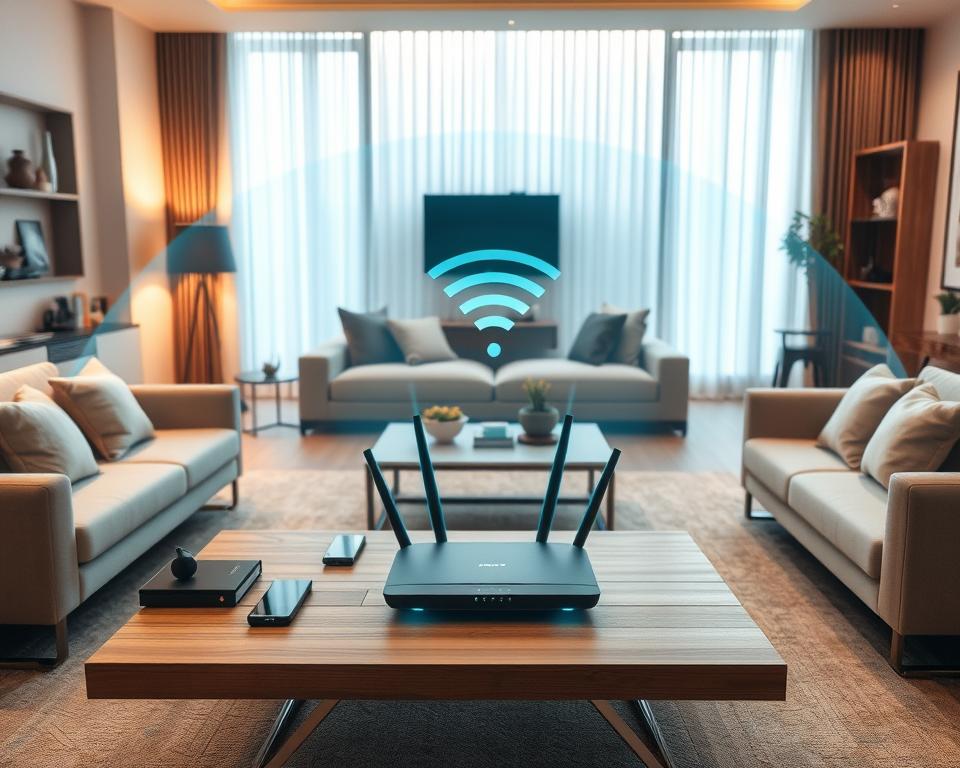
A central router location helps the signal reach rooms throughout your home. Placing it at one end may create a strong signal nearby but a weak signal far away. Smart router placement can improve home WiFi signal throughout the house.
In a one-story home, try an open room near the center. For a multistory home, test spots that serve rooms on both levels. Avoid closed spaces such as closets, cabinets, basements, and attics.
How high should you place your WiFi router?
Place your router on a table, desk, or shelf instead of the floor. Extra height can reduce signal interference from flooring, furniture, and nearby objects.
For better router placement, choose a central, open spot above floor level. You do not need to place the router near the ceiling; keep its signal path clear.
Why should your router stay out in the open?
Cabinets, closets, and large furniture can block WiFi signals. Keep your router in an open, visible spot to improve home WiFi signal throughout your space.
An open shelf or floating shelf works well if you do not want the router on a table. This router placement leaves room for airflow and may help prevent overheating.
Which walls and objects weaken a WiFi signal?
Concrete, brick, and stone can block much of a WiFi signal. Thick plaster walls may weaken it, too. More barriers between your router and device make a steady connection harder.
Large furniture, metal objects, mirrors, and aquariums can absorb, block, or reflect radio waves. This signal interference can weaken nearby rooms or create Wi-Fi dead zones.
| Obstacle | How it affects WiFi |
|---|---|
| Concrete, brick, or stone walls | Can greatly reduce or block the signal |
| Thick plaster walls | Can weaken the signal between rooms |
| Metal objects and mirrors | Can block or reflect radio waves |
| Large furniture and aquariums | Can absorb or disrupt the signal |
Where should you keep your router away from electronics?
Keep your router a few feet from devices that may cause signal interference. Microwave ovens are a common concern because they may compete with some WiFi frequencies. Avoid placing the router beside a microwave or another large appliance.
Nearby wireless networks can create channel congestion, especially in apartments and busy neighborhoods. If your router supports automatic or optimized channel selection, turn it on for a clearer path.
Moving the router a few feet may improve signal clarity. Use these placement tips as a starting point:
| Source | Placement tip | Why it helps |
|---|---|---|
| Microwave oven | Keep the router several feet away | Reduces competition near shared WiFi frequencies |
| Nearby WiFi networks | Enable automatic channel selection | Can help the router use a less crowded channel |
| Large appliances | Place the router in a separate, open spot | Limits nearby sources of wireless disruption |
How should you aim your router antennas?
If your router has adjustable antennas, test several positions in rooms you use most. Small changes in router placement can improve home WiFi signal, but the best angle depends on your home and router.
Keep antennas vertical for same-floor coverage
A vertical antenna generally spreads WiFi across the same floor. Start with this position if most devices are nearby on one level.
Angle one antenna for multiple floors
A horizontal antenna may help reach devices on another floor. With several antennas, try one vertical and one horizontal, or set them at 45-degree angles. Test each setup because no single position works best in every home.
Where should you place a router in a multistory home?
Place the router in a central spot with a clear path to rooms on different floors. A landing or open area near the home’s center may work better than a corner room.
Concrete, brick, and stone walls can weaken WiFi signals. Large homes may need a wireless access point on another floor or a mesh network system for steadier coverage.
| Home layout | Placement to try | What to watch for |
|---|---|---|
| Two floors, open stairway | Central spot near the stairs | Check signal in rooms above and below |
| Thick masonry walls | Open area near the rooms you use most | Walls may block signal across floors |
| Large or split-level home | Central router with an added access point | Test coverage in distant rooms |
Can you move the router away from the modem?
Yes. You can move your router to a better spot for coverage if it stays connected to the modem. No maximum distance is set, but the cable must reach both devices.
A long Ethernet cable can connect the devices. Powerline adapters send data through your home’s electrical wiring. Both adapters must use the same circuit for this setup.
Ethernet backhaul links mesh devices with a wired connection. For router placement, choose a connection that reaches the modem and suits your home.
| Connection option | How it works | Key detail |
|---|---|---|
| Ethernet cable | Runs from the modem to the router | Choose a length that reaches the preferred router spot |
| Powerline adapters | Carries data over electrical wiring | Both adapters must be on the same circuit |
How do you place mesh nodes or WiFi extenders?
Mesh nodes and extenders improve connections in rooms with weak service. Place each device where it still receives a strong router signal.
Position mesh nodes between the router and weak areas
In a mesh network system, nodes work together under one network name. Place a node between the router and Wi-Fi dead zones, not inside them. In larger homes or homes with thick walls, use Ethernet backhaul for a steadier link.
Place extenders within strong router coverage
Place an extender about halfway between the router and the weak area. It needs a strong signal to rebroadcast.
Concrete walls, metal objects, and microwaves can disrupt the connection. A signal light on TP-Link extenders can help you find a better spot.
Powerline adapters offer another option. They carry network data through your home’s electrical wiring when both adapters use the same circuit.
Which WiFi band works best after you move the router?
A better router location can change how each WiFi band performs. If you own a dual-band router, test both bands in rooms where you use WiFi. The best choice can vary by location, so compare speed and reliability instead of guessing.
Nearby wireless networks may share a channel and cause signal interference. A microwave oven may disrupt WiFi while it runs. If your router offers automatic or optimized channel selection, turn it on to reduce congestion.
| What to check | What to do |
|---|---|
| WiFi band | Test each available band in the rooms you use most. |
| Nearby networks | Use automatic or optimized channel selection if your router supports it. |
| Microwave use | Check the connection while the microwave is off and running. |
| Network performance | Compare speed and reliability after moving the router. |
How can you test whether the new router position worked?
Walk through your home with a phone or laptop after moving the router. Check the Wi-Fi signal near the router, in weak rooms, and in Wi-Fi dead zones.
Load a few pages or stream a short video in each area. Watch for slow connections, weak reception, or dropped signals. These checks show whether the new spot helps improve home WiFi signal.
If Wi-Fi stays weak throughout the home, connect a device to the router with an Ethernet cable and test again. Poor performance on both wired and wireless connections may point to an issue with your internet service, not router placement.
What should you change when better placement is not enough?
If one or two rooms still have weak WiFi, a range extender may help. It rebroadcasts your router’s signal, so place it where the signal remains strong. For wider coverage, a mesh network system links nodes to create one network throughout your home.
In a large home or one with thick walls, connect mesh nodes with Ethernet backhaul when possible. A wired wireless access point can extend coverage to one specific area. Powerline adapters send data through electrical wiring, but work best when both adapters share a circuit.
Before buying new gear, update your router’s firmware and reboot it while troubleshooting. Change the WiFi channel if channel congestion is slowing your connection, then test your signal again. Your best setup may change as rooms and connected devices change.
If your router is old, consider a model that supports WiFi 6 or WiFi 7. Newer equipment can improve speed and handle more devices, but good placement still matters.




