
ADVERTISEMENT
Your phone may use mobile data while you are not using it. Apps can refresh, sync files, or download updates in the background, which may raise your bill.
A few smart settings can help reduce mobile data usage and make your plan last longer. First, check app data consumption, then turn on data saver mode and limit cellular activity.
Key Takeaways
- Background activity can use cellular data.
- Phone settings can help limit data use.
- Check which apps use the most data.
- Data-saving features vary by phone and software version.
- Android Data Saver is available on Android 7.0 and later.
Check which apps are using the most mobile data
Your phone shows which apps use the most mobile data. On a Pixel, open Settings, tap Network & internet, then SIMs. On other Android phones, tap Internet and the settings icon beside your carrier.
ADVERTISEMENT
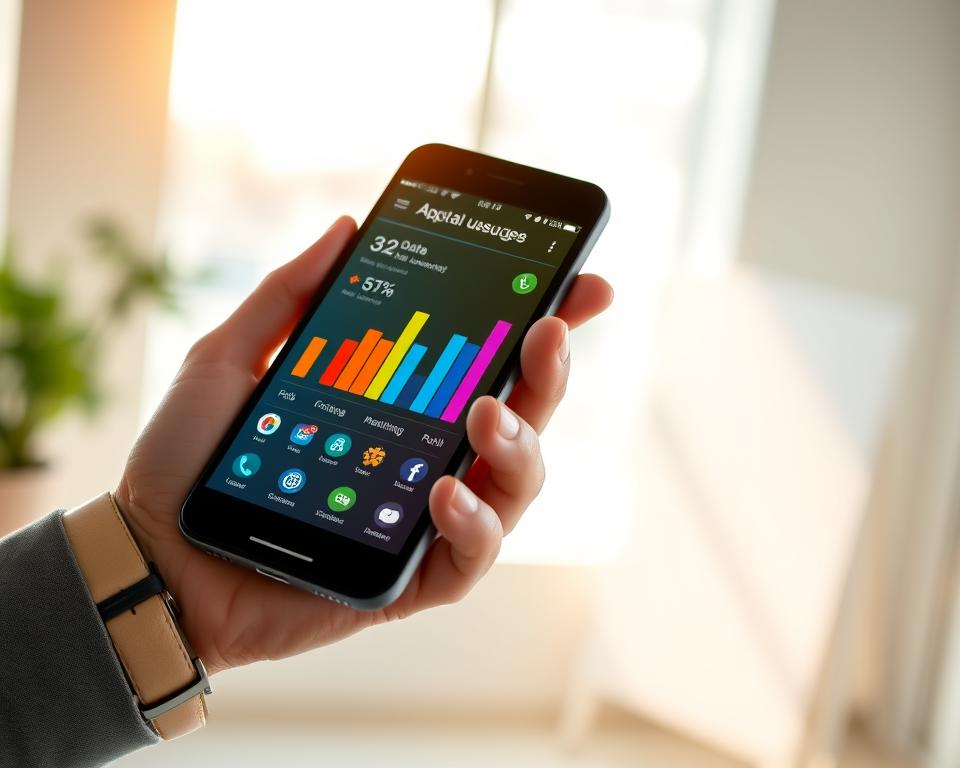
Check the total at the screen’s top, then tap App data usage. A graph and app-by-app amounts can show what drives app data consumption. Use the down arrow to choose a time period.
Phone settings and carrier totals may differ. Also check your carrier’s usage details. Knowing which apps use the most data can help you reduce mobile data usage.
Set a data warning and usage limit
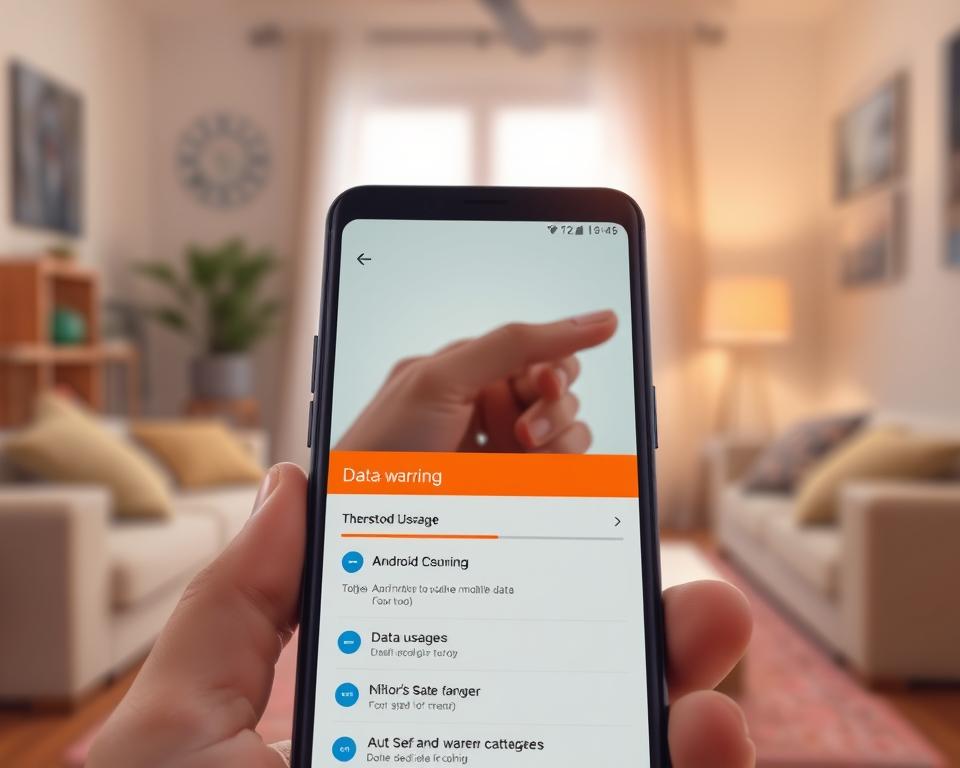
A data warning helps you spot rising app data consumption before it uses your monthly plan. On Android, open Settings and tap Network & internet. Choose SIMs on a Pixel phone or Internet on some other Android devices, then open Data warning & limit.
Turn on Set data warning, enter an amount in megabytes or gigabytes, and tap Set. Your phone sends a notification when you reach that amount. This alert helps you reduce mobile data usage before you reach your plan’s cap.
To stop data use at a set amount, turn on Set data limit and enter a limit. Android turns off mobile data and sends a notification when you reach it. Some features may stop working until you turn off Set data limit and restore mobile data.
| Setting | What it does | When to use it |
|---|---|---|
| Data warning | Sends an alert when your use reaches the amount you set. | Use it to track your data without stopping your connection. |
| Data limit | Turns off mobile data and sends an alert at the amount you set. | Use it to prevent more cellular use after reaching a firm cap. |
Turn on your phone’s built-in data-saving mode
Your phone can limit data use without blocking every app. These settings add background data restrictions and can help reduce mobile data usage away from Wi-Fi.
Use Data Saver on Android
Data Saver is available on Android 7.0 and later. On Android 8.0 or newer, open Settings, tap Network & Internet, choose Data Saver, and switch it on. A Data Saver icon appears in the status bar, and Settings shows a notice when it’s active.
This data saver mode cuts back on background data, but it does not stop all data use. To let certain apps or services keep using mobile data, open Unrestricted data in the Data Saver settings. Google Play, Clock, and Settings may need this access for some features.
Use Low Data Mode on iPhone
On iPhone, open Settings and tap Cellular, then Cellular Data Options. Choose Data Mode and turn on Low Data Mode.
If you use two SIMs, select the line you want to adjust first. You can set Low Data Mode for a Wi-Fi network from its info screen, too.
These settings limit some background activity, but apps can still use data when you open them. Check your app settings if you need tighter controls.
| Phone setting | Where to find it | What it does |
|---|---|---|
| Android Data Saver | Settings > Network & Internet > Data Saver | Limits much background mobile data; selected apps can be allowed through Unrestricted data. |
| iPhone Low Data Mode | Settings > Cellular > Cellular Data Options > Data Mode | Reduces some background activity on the selected cellular line. |
Stop apps from refreshing in the background
Some apps use mobile data to refresh feeds, check messages, or sync files when you are not using them. Review each app’s settings to reduce app data consumption without missing needed updates.
On Android, use Data Saver to limit background activity. Then, allow selected apps to use mobile data with Unrestricted data. These background data restrictions can reduce data use while keeping key apps connected. You can also turn off auto-sync, but you must sync those apps by hand.
On iPhone, open Settings and turn off Background App Refresh for apps that do not need frequent updates. Menu names and controls may vary by device and software version.
Prevent automatic app updates over cellular data
App updates can use mobile data without notice. Check your phone’s update settings, and choose Wi-Fi only. On Android, review Google Play’s network preferences; on iPhone, check App Store settings for automatic downloads over cellular data.
Data Saver can limit background activity, but it may not stop every transfer. Review background data restrictions and check app data use in Settings. These steps can help reduce mobile data usage and avoid surprise charges.
Keep photo and video backups on Wi-Fi only
Photo and video backups may use mobile data in the background. Check your photo app’s backup settings, and choose Wi-Fi only when available. This can reduce app data consumption without stopping backups at home or work.
Wi-Fi auto-connect can help your phone join trusted networks for backups. Also, check the app’s mobile data use in your phone’s Settings. Data Saver may limit background activity to Wi-Fi, but it does not block every data transfer.
Lower streaming quality on mobile data
Video, music, and social apps can use mobile data while you watch or listen. Small setting changes can help you stay within your plan.
Reduce video quality in streaming apps
When an app offers playback settings, choose a lower option on cellular data. Lower video streaming quality uses less data, especially during long viewing sessions. Check the app’s settings because controls vary by service.
Limit music and social media data use
Review Spotify, YouTube, and social media settings for playback and background activity. Data Saver can limit some background communication to Wi-Fi, but it does not block all data use. Check your phone’s App data usage screen to track each app’s mobile app data consumption.
Block cellular data for apps that do not need it
Some apps use mobile data even when you are not using them. Background data restrictions can curb app data consumption and help control your plan. Apps may load embedded images or videos before you open them.
On many Android phones, open Settings, tap Connections, Data Usage, then Data Saver. Choose Allow app while Data Saver on to select apps that may still use mobile data. Menu names may vary by device.
Allow access for apps that need updates or alerts. Turn it off for apps that can wait until you connect to Wi-Fi.
Turn off Wi-Fi Assist and similar network-switching features
Wi-Fi Assist can use cellular data when your Wi-Fi signal is weak. Your phone may switch networks without warning, making it harder to reduce mobile data usage.
On some Samsung phones, open Settings, tap Connections, Wi-Fi, the three-dot menu, then Advanced. Turn off Switch to mobile data. Menu names vary by device, so check Wi-Fi and network settings for similar options. Review Wi-Fi auto-connect settings to stop your phone using cellular data when a saved network is unreliable.
Avoid unexpected data use from personal hotspots
A device connected to your personal hotspot may use mobile data for streaming, downloads, or app updates. Watch app data consumption while the hotspot is active, especially with a monthly plan cap.
Android shows total data use and app data use in Settings. Your carrier may measure usage differently, so check its numbers and your plan limits. This can help you spot surprises and reduce mobile data usage.
Download maps, music, videos, and podcasts over Wi-Fi
Save maps, playlists, shows, and podcast episodes over Wi-Fi. These offline downloads let you use saved content on the go without streaming through cellular data.
Turn on Wi-Fi auto-connect for trusted networks, such as your home Wi-Fi, to make downloads easier. Data Saver can limit background activity to Wi-Fi, but it does not stop all data use. Check each download before leaving the network to make sure it is complete.
| Content | Why download it over Wi-Fi |
|---|---|
| Maps | View saved areas when you travel without loading map data on the road. |
| Music and podcasts | Listen to saved tracks and episodes instead of streaming them. |
| Videos | Watch saved shows and clips without using cellular data for playback. |
Review your settings after each billing cycle and keep the savings going
At the end of each billing cycle, check your phone’s App data usage graph. Compare app data consumption over the same time period to spot apps that use more than expected. Adjust their settings to reduce mobile data usage.
Keep a data warning turned on to get an alert when you reach a chosen amount. You can also set a data limit to turn off mobile data once you hit it. Phone and carrier totals may differ, so check your plan and usage with your carrier.
Before using cellular data roaming, check whether your carrier charges extra. In some places, roaming may be the only way to get online. Google Fi users on Pixel and Android devices do not need to turn on roaming for domestic roaming.




