
ADVERTISEMENT
Scan documents with iPhone using Apple Notes. Since 2017, your iPhone has included a built-in document scanner.
Apple Notes turns paper pages into clean scans, so you need no separate app.
The iOS Notes document scanner uses your camera to capture each page. You can keep scans in a note, then share or export them as PDFs.
Key Takeaways
- Apple Notes includes a document scanner.
- No extra scanner app is required.
- Scans can be saved in a note.
- You can share or export scans as PDFs.
What you need to scan a document on iPhone
To scan documents with iPhone, you need the phone, the built-in Notes app, and a paper document. Notes comes preinstalled, so you do not need another app.

ADVERTISEMENT
Your iPhone camera can capture readable text, even when the phone or paper is at an angle. optical character recognition can make scanned text searchable, but a dedicated scanner may create sharper images.
Open the scanner in Apple Notes
Open Notes and choose an existing note, or tap the compose button to create one. In iOS 26, tap the paperclip-shaped Attachments button, then tap Scan Documents.
On iOS 17 and earlier, tap the Camera button and choose Scan Documents. You can also find Scan in the More menu of an open note.
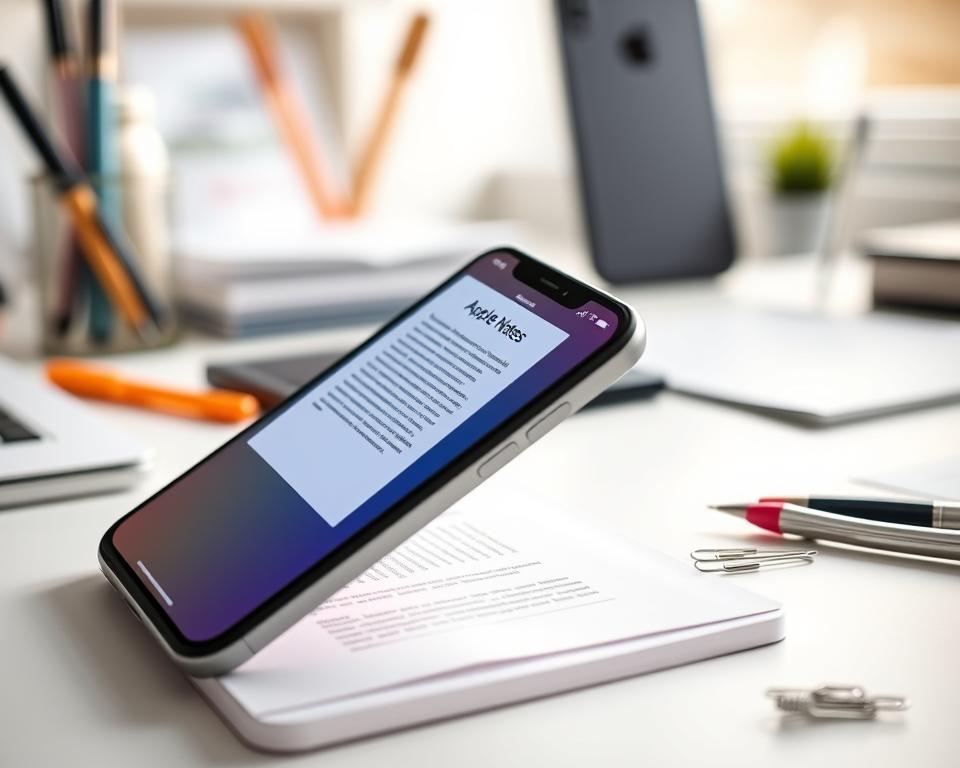
The iOS Notes document scanner starts from the note, so your scan stays with text or details you add there. Notes can support searchable text extraction, making words in a scan easier to find.
| iOS version | Where to find Scan Documents |
|---|---|
| iOS 26 | Attachments button, shown as a paperclip |
| iOS 17 and earlier | Camera button |
| Any supported version | More menu in an open note |
Hold your iPhone over the first page
Place the page on a flat surface in a well-lit area. Hold your iPhone above it and keep the full page in view. When you scan documents with iPhone, Notes can detect the edges and capture the page automatically. A yellow outline may show what the scan will include.
In iOS 26, scanner controls include flash and image filter options. Even lighting can keep text clear and help you adjust document contrast later.
Capture a page manually when auto-scan misses
If the iOS Notes document scanner misses the page, tap the Shutter button. You can also press either Volume button to take the scan.
To scan documents with iPhone, drag the corner handles to match the page edges, then tap Keep Scan. If the result looks off, retake the page before ending the scan session.
Fix the crop, rotation, and color
Tap the page preview to improve your scan. Drag the corner handles to crop scan borders and remove desk space or shadows.
Choose a color setting that keeps the text clear. These options help adjust document contrast without changing the original paper.
Apple Notes provides color, black and white, grayscale, and the unedited original. These tools cover cropping and color, but they do not list a separate rotation control.
| Setting | Best for |
|---|---|
| Color | Pages with colored text, stamps, or diagrams |
| Black and white | Sharp, high-contrast text on plain paper |
| Grayscale | Pages with shaded areas or soft tones |
| Original | Keeping the captured image’s unedited appearance |
Add multiple pages to one scan
After you capture a page, scan the next one. Notes adds every page to one document, so you can scan a packet in one session.
When you finish, tap Done. Check the page thumbnails and confirm their order before leaving the scanner. The pages stay together when you save the scan in PDF file format.
Notes may recognize printed words, which supports searchable text extraction. Clear, well-lit pages make text easier to find later.
Finish and save the scanned PDF
Tap Done after scanning. Notes saves the pages in your note for later access.
To share a copy in PDF file format, tap Share, choose Print, then tap Share again. Choose an available app or method to send the file. This lets you scan documents with iPhone and share a clean copy.
| What you do | What happens |
|---|---|
| Tap Done | The scan is saved in your Notes note. |
| Choose Share, then Print | Prepare the scan to share as a PDF. |
| Tap Share again | Send or save the PDF using an available option. |
Find the scan after you save it
Your scan stays in the note where you made it. Open Notes, then check the note’s folder under iCloud or On My iPhone. The iOS Notes document scanner keeps each scanned page with that note.
Notes can use searchable text extraction. Search for a word that appears in the scan. If scanning controls are missing, tap Folders and open a note in iCloud or On My iPhone.
Rename or move the scanned document
To rename a scan, open its note and change the note title. To save the scan as a separate file, tap it, open Share, and choose Save to Files. Choose a folder, then save the file in the PDF file format.
You can choose a new folder each time you save a copy from the iOS Notes document scanner. In Files, press and hold the saved PDF to rename it or move it to another folder.
Share the scan or save it to Files
Open the scan in Notes, then tap Share. Choose Messages or another app to send it, or choose Copy to paste it elsewhere. To share files through AirDrop, choose AirDrop and select a nearby Apple device.
To keep a copy on your iPhone, tap Save to Files and choose a folder. You can also print the scan with a linked printer. For another PDF file format copy, choose Print from Share options, tap Share again, then choose its destination.
Use the Notes scanner for a quick, clean PDF
The iOS Notes document scanner lets you scan documents with iPhone without installing another app. It finds page edges, adjusts the crop, and adds a color filter for a cleaner result.
Need to scan a packet? Add several pages to one document. Then save the scan in Notes or share it as a PDF. You can also use the Print option, then share the resulting PDF.
A dedicated scanner may capture sharper detail. However, your iPhone works well for everyday forms and notes. Optical character recognition can make scan text easier to find or use, depending on your iPhone and the app.




