
ADVERTISEMENT
Americans received nearly 10 billion robotexts each month in 2022, according to the Federal Communications Commission. These unwanted texts can bring scams, fake alerts, and sales pitches to your phone.
You can stop spam texts on Android using a few built-in tools. Google Messages can spot suspected spam and move it to the Spam & blocked folder. Other messaging apps may offer different SMS filtering settings.
Start by checking which app handles your texts. Android spam protection steps depend on your phone and messaging app. Simple changes can help reduce unwanted messages.
Key Takeaways
- Android phones may use Google Messages, Samsung Messages, or another texting app.
- Google Messages can detect suspected spam and scams.
- Filtered texts may appear in the Spam & blocked folder.
- Spam settings vary by messaging app and phone.
- Blocking and reporting suspicious messages can help reduce unwanted texts.
Find the Android app that handles your text messages
Your phone may use Google Messages, Samsung Messages, or another Android text messaging app. Open Settings and find the default SMS app under Apps. The menu name may vary by phone.
Spam filters and blocking tools vary by app, phone, and Android version. Review message app permissions before changing them, so the app can still send and receive texts. After identifying the app, find its controls to stop spam texts on Android.
ADVERTISEMENT
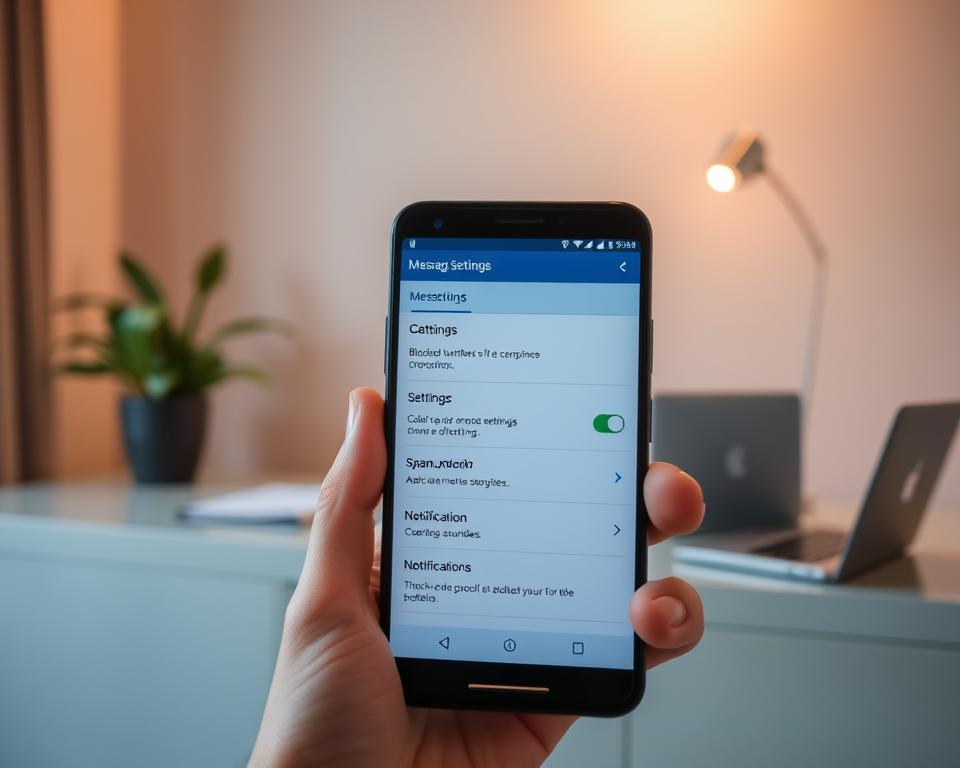
Turn on spam protection in Google Messages
Google Messages can screen unknown senders for suspicious texts, including phishing text scams. These SMS filtering settings let you choose your protection level.
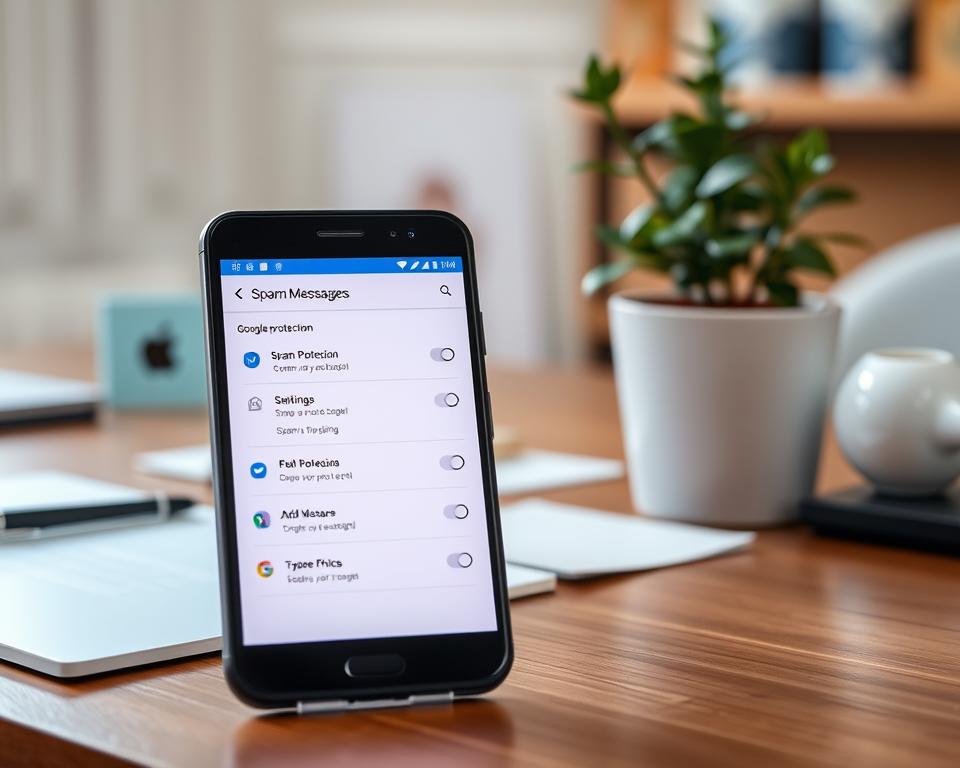
Enable spam detection in Messages settings
Tap your profile picture or initials. Open Messages settings, then choose Protection & safety and Spam and scam protection. If shown, select Enhanced protection, Standard protection, or No protection.
Standard protection is on by default. It uses on-device machine learning to spot known spam patterns from unknown senders and can work without a data connection. Enhanced protection may use Gemini models in Google’s secure Private AI Compute.
Google says processed data stays private there, but protection may send a message URL to Google for a safety check.
Check the spam and blocked folder
Google may send suspected spam to a separate folder instead of your main inbox. Open the app menu and tap Spam & blocked to review it. Check this folder now and then, because a wanted message may be filtered by mistake.
Block and report a spam conversation in Google Messages
Open the conversation and tap the spam warning, if one appears. Choose Report spam to report junk messages and help Google and carriers find unwanted texts. If a message was flagged by mistake, tap Report not spam.
To block spam numbers from a sender, open the conversation menu and select Block or Block & report spam. The wording may vary by phone or app version. Google Messages may stop suspected scam texts and move them to the spam and blocked folder. Google may suspend senders who break its Terms of Service.
Use Samsung Messages to block unwanted texts
Samsung Messages can block a number and flag a suspicious text as spam. The Samsung Messages spam settings may differ across phone models and Android versions, so menu names can vary.
Add a sender to the blocked numbers list
Open the conversation and tap the menu in the upper-right corner. Choose Block number or Details, then tap the block option. This can stop texts from that number, but spammers may switch numbers or spoof a sender ID.
To block unknown senders, check your phone’s message settings for filtering options. These settings can sort some texts, but they may not catch every unwanted message.
Report spam from the conversation screen
If the menu offers Block & report spam, select it to block the number and report the conversation. Use the report option when available to report junk messages and help flag the text as spam.
| Option | What it does |
|---|---|
| Block number | Stops messages from the selected number. |
| Block & report spam | Blocks the number and reports the conversation when the option appears. |
| Filter unknown senders | May sort messages from numbers that are not in your contacts. |
Filter messages from unknown senders
Google Messages checks texts from people outside your contacts for spam patterns. It may flag a reported spammer and move suspicious messages to Spam or Unknown. Review your SMS filtering settings to see how your app handles these messages.
Some Android apps let you block unknown senders, but options vary by phone and app. Treat unexpected texts with care, especially messages that pressure you to act fast. Phishing text scams often use urgent claims to make you tap a link.
Don’t open links in messages you weren’t expecting. If a text claims to come from a bank or delivery company, check its official app. You can also call a number you find on your own.
Silence spam text notifications without missing every message
Android spam alerts can flag suspicious texts, but controls differ by phone and messaging app. In Google Messages, suspected spam may move to the Spam & blocked folder, away from regular chats.
Check that folder sometimes so you do not miss a message you need. To filter spam texts without muting every alert, review notification settings and message app permissions. Options vary by device.
Block unwanted texts through your mobile carrier
Your carrier may catch spam before it reaches your inbox. Verizon Call Filter can block robocalls and spam messages. T-Mobile Scam Shield spots scams and offers caller ID for numbers outside your contacts.
AT&T ActiveArmor can block texts from email addresses, which often send spam. U.S. Cellular offers tools to filter and block unwanted or illegal calls. These services add carrier spam protection to your phone’s built-in filters.
Check your carrier’s app or account settings to turn on the features you need. Pair caller ID and spam protection with Android’s message filters to help stop spam texts on Android.
Unsubscribe from legitimate business texts safely
Some legitimate business texts let you reply STOP to leave a list. Use this STOP text opt-out only if you know and trust the sender. A short code opt-out can stop messages from a business you know.
Do not reply to an unknown sender just because a text asks you to send STOP. Your reply may confirm that your number is active. If you feel unsure, block the sender instead.
Avoid replies and links that confirm your number is active
Don’t reply to suspicious texts, click suspicious text links, or open attachments. A reply can show scammers that your number is active and bring more spam. To avoid spam replies, delete the message or report it in your messaging app.
Phishing text scams may request personal details or lead you to a harmful website. A wrong-number text may begin with friendly chat, then shift to money requests or crypto investment offers. Treat unexpected messages with care.
If a text claims to come from someone you know or a business, check through a trusted phone number. Find that number on the official site, not in the message. Don’t use contact details or links from the text.
Report persistent spam to your carrier and the FTC
To forward spam to 7726, which spells SPAM, send the text to your carrier. AT&T, Verizon Wireless, and T-Mobile use reports to find and block similar messages. On Android, press and hold the text, tap the three-dot menu, and choose Forward.
You can report junk messages in your messaging app, if that option is available.
For an FTC spam text report, submit details at ReportFraud.ftc.gov. Include the sender’s number and message content. Do not tap links or reply to the text.
The National Do Not Call Registry can help limit marketing texts and calls. If unwanted messages continue 31 days after you list your number, report them to the FTC.
| Where to report | What to do | What it helps with |
|---|---|---|
| Your carrier | Forward the text to 7726 | Helps carriers identify similar spam |
| Messaging app | Use its report spam option, if available | Flags the conversation in the app |
| FTC | Submit details at ReportFraud.ftc.gov | Shares information about unwanted messages |
Check blocked numbers when spam texts still appear
Open your messaging app’s blocked numbers list to confirm the unwanted number is there. Blocking helps when the same number keeps texting, but spammers can spoof or change numbers to get around it.
Check the Spam & blocked or Unknown folder for filtered messages. You can block unknown senders in app settings, then report spam that still reaches your messaging app or carrier. Carrier spam protection may catch other messages, too.
Keep your Android spam-text settings working over time
Review your SMS filtering settings from time to time, especially after changing phones or updating your messaging app. In Google Messages, choose Standard protection, Enhanced protection, or No protection under spam and scam protection settings.
Google says Standard protection processes message data on your device. Google says Enhanced protection may use encrypted Private AI Compute in a secure space. Google also says it temporarily stores numbers from messages sent by people outside your contacts, plus other non-identifying details.
Spam reports are sent anonymously, and Google says only reported messages and anonymized data are used to train its AI models. Review message app permissions, and keep your messaging app up to date.
Even strong filters cannot prevent every exposure. A data breach or broker site may reveal your number. To stop spam texts on Android, ask those sites to remove your personal information or use a data removal service.




